You have a signed contract, a tax return, or a patient referral to send. You open a new email, attach the PDF, and hesitate.
That hesitation is justified. A plain email attachment can be forwarded, misdirected by auto-complete, or left in inboxes for years. This guide covers how to send documents securely online and by email, compares the six main methods, and explains which one fits which situation.
Quick Summary
- Plain email attachments are the least secure way to send documents: no expiry, no access control, and copies that linger.
- A secure transfer encrypts files in transit and at rest, limits who can open them, expires, and leaves a record.
- Gmail confidential mode and Outlook’s Encrypt option add protection to email, with limitations worth knowing.
- Password-protected files help only if the password is strong and shared through a separate channel.
- For client and regulated documents, an encrypted file transfer service with a passphrase and an expiry date is the most practical option.
In This Guide
- Why Shouldn’t You Attach Sensitive Documents to Email?
- What Makes a Document Transfer Secure?
- What Are the 6 Ways to Send Documents Securely?
- How Do You Send Secure Documents via Email?
- Which Secure Document Sending Method Is Best?
- Are There Rules for Sending Documents in Regulated Industries?
- How Does SureSend Make Sending Documents Secure?
- What Are the Best Practices for Sending Documents Securely?
- Frequently Asked Questions
- Sources
- The Bottom Line
Why Shouldn’t You Attach Sensitive Documents to Email?
Email was built for convenience, not confidentiality. Once you press send, you lose control of the document:
- It can be forwarded to anyone, without your knowledge.
- Auto-complete can send it to the wrong person in a single click.
- It sits in the recipient’s inbox, your Sent folder, and both sides’ backups indefinitely.
- Most email offers no way to expire access or confirm who opened the file.
The cost of getting it wrong is significant. IBM’s Cost of a Data Breach Report put the global average cost of a breach at USD 4.44 million in 2025, and misdirected or overshared files are a routine way breaches begin.
What Makes a Document Transfer Secure?
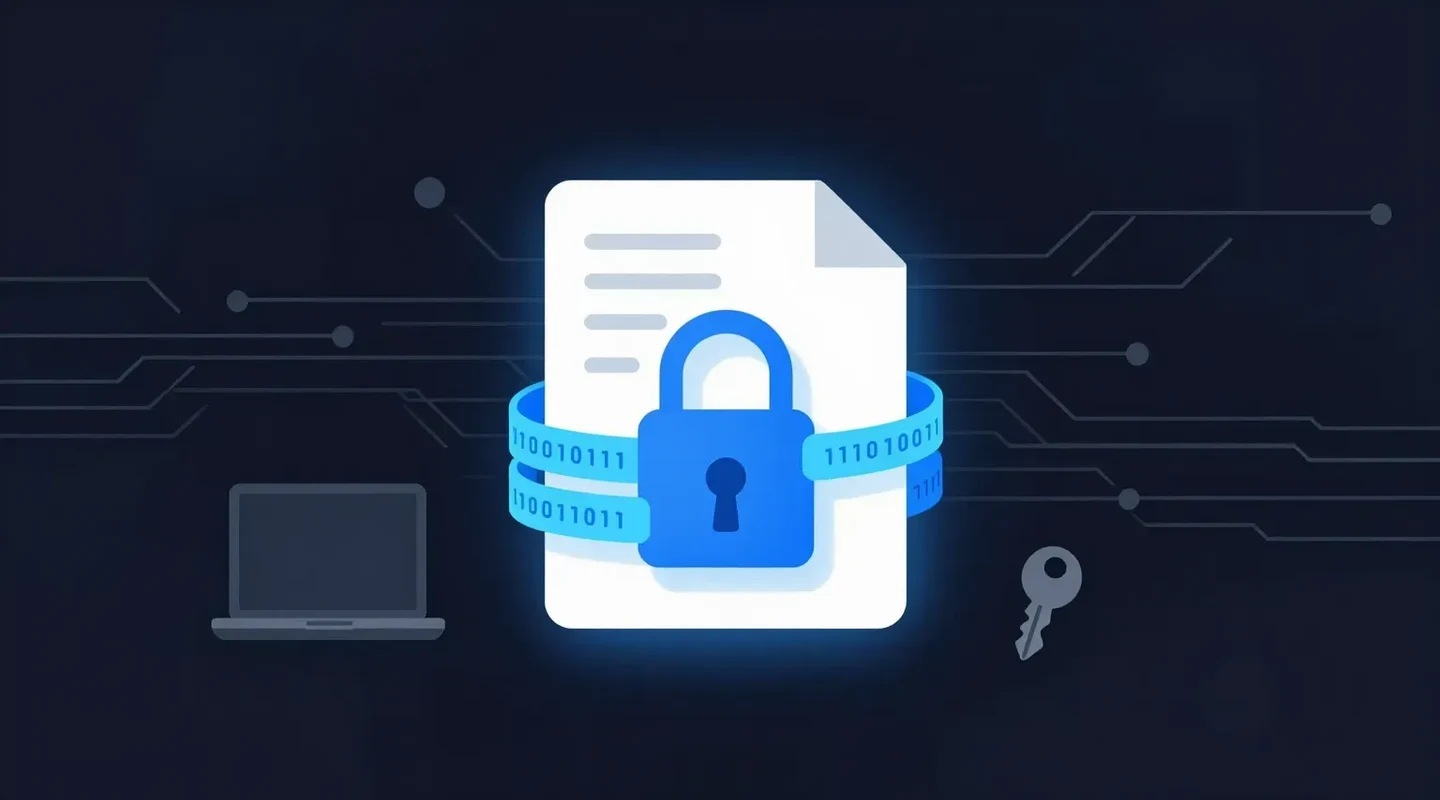
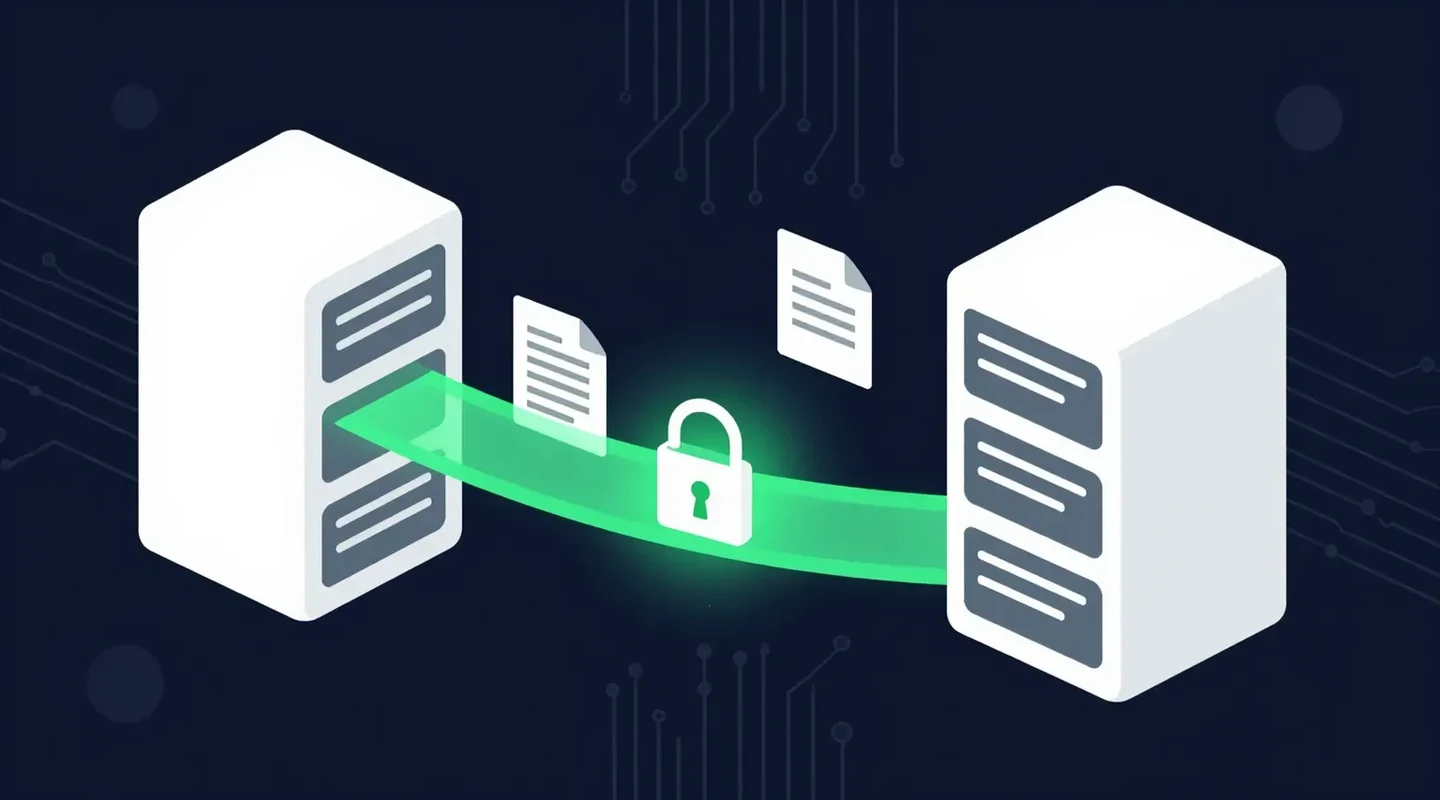
A secure document transfer encrypts the file in transit and at rest, limits access to the intended recipient, expires after a set period, and records when the document was sent and retrieved.
- Encryption in transit: protecting the file as it moves across the internet, typically with TLS.
- Encryption at rest: protecting the file while it is stored, typically with AES-256.
- Access control: making sure only the intended recipient can open it, for example with a passphrase.
- Expiry: the link or file stops working after a set period.
- A record: knowing when the document was sent and whether it was retrieved.
Our guide on why encryption is important explains the technical side in more detail.
What Are the 6 Ways to Send Documents Securely?
The six main ways to send documents securely are an encrypted file transfer service, email with built-in encryption, a password-protected file, a restricted cloud storage link, a client portal, and tracked courier or registered mail.
1. Use an Encrypted File Transfer Service
Purpose-built transfer services encrypt the file, send the recipient a download link, and let you control who can open it and for how long. This is the most practical option for client files, financial records, and anything containing personal information, because it works for any recipient without special software. If a partner’s IT team asks for SFTP details instead, here is what SFTP is and how it compares with FTPS.
2. Send Secure Documents via Email With Built-In Encryption
Both Gmail and Outlook have options that make email safer. They are covered step by step in the next section.
3. Password-Protect the File
You can encrypt a PDF or a zip file with a password before attaching it. Use AES-256 encryption, which 7-Zip and most PDF tools offer, rather than the older ZipCrypto method, and share the password by phone, never in the same email. Our step-by-step guide shows how to password protect a PDF in Acrobat, Preview, Word and the free LibreOffice. Our guide on how to encrypt a file walks through 7-Zip, Microsoft Office and Mac disk images step by step.
4. Share a Restricted Cloud Storage Link
Google Drive, OneDrive, and Dropbox can share a file with specific people only, and some plans allow expiring links. The risk is in the settings: “anyone with the link” sharing and folders that stay shared indefinitely are common mistakes.
5. Use a Client Portal
Portals built into practice management software keep documents in one place, but clients often forget their logins and fall back to email. Our guide to file sharing for lawyers looks at this problem in detail.
6. Use Tracked Courier or Registered Mail
For original paper documents, a signature-required courier is still the right choice. For anything that exists digitally, a secure digital alternative to courier services is faster and leaves a clearer record.
How Do You Send Secure Documents via Email?
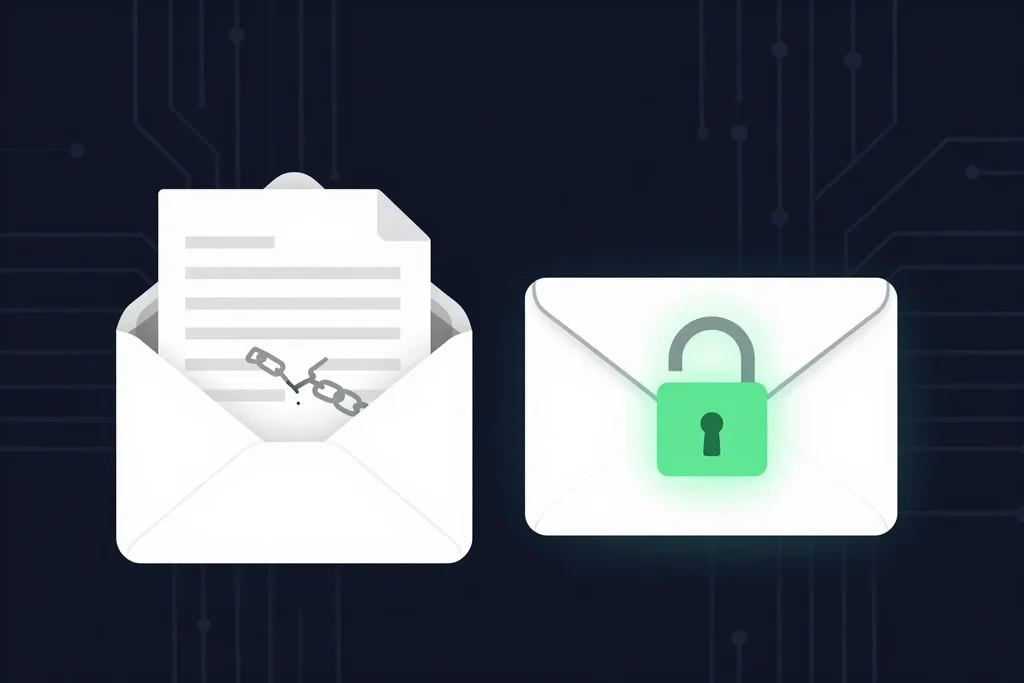
Use Gmail’s confidential mode or Outlook’s Encrypt option, or attach an AES-256 password-protected file and share the password separately. For large or regulated documents, a secure transfer link is simpler for the recipient.
In Gmail: Confidential Mode
- Click Compose and add your attachment.
- Click the lock-and-clock icon (Turn confidential mode on/off) at the bottom of the window.
- Set an expiry date and choose whether recipients need an SMS passcode.
- Click Save, then Send.
Recipients cannot forward, copy, print, or download the message or its attachments, and you can remove access early. However, Google notes that recipients can still take screenshots, and confidential mode is not the same as encrypting the file itself. Our full guide explains how to send a secure email in Gmail, including what the lock icons mean and when S/MIME is available.
In Outlook: Encrypt
- Create a new message and add your attachment.
- Select Options, then Encrypt.
- Choose Encrypt or Encrypt and Prevent Forwarding (called Do Not Forward in some versions).
- Send the message as usual.
Encryption in Outlook requires a qualifying Microsoft 365 subscription. Recipients who do not use Outlook open the message through a Microsoft portal, which can be confusing for clients. Our step-by-step guide shows how to encrypt email in Outlook in each version of the app, including the web and mobile.
Both options keep the document inside the email system, and both still depend on the recipient’s email account being secure. For large files or regulated documents, a dedicated transfer is simpler for everyone.
Which Secure Document Sending Method Is Best?
An encrypted file transfer service gives the most control: encryption, a passphrase, an expiry date and a retrieval record. Email options are convenient but depend on the recipient’s inbox, and password-protected files never expire.
| Method | Encryption | Access control | Expiry | Effort for recipient | Best for |
|---|---|---|---|---|---|
| Plain email attachment | In transit only (usually) | None | No | None | Non-sensitive files |
| Gmail confidential mode | In transit | Optional SMS passcode | Yes | Low | Short, sensitive messages |
| Outlook Encrypt | Yes | Recipient sign-in | No | Medium outside Outlook | Microsoft 365 organizations |
| Password-protected file | Yes (AES-256) | Password | No | Medium | Occasional one-off files |
| Restricted cloud link | Yes | Specific people | Varies | May need an account | Collaboration |
| SureSend | TLS in transit, AES-256 at rest | Passphrase shared separately | Yes, up to 21 days | Low, no account | Client and regulated documents |
Are There Rules for Sending Documents in Regulated Industries?
For many organizations, how you send documents is a legal question, not only a practical one. In Canada, PIPEDA requires safeguards appropriate to the sensitivity of personal information. Ontario health custodians must also meet PHIPA, and payroll teams handling SINs face the same expectations when they send T4 slips. A secure transfer method does not make you compliant on its own, but it is one of the controls regulators expect to see.
How Does SureSend Make Sending Documents Secure?
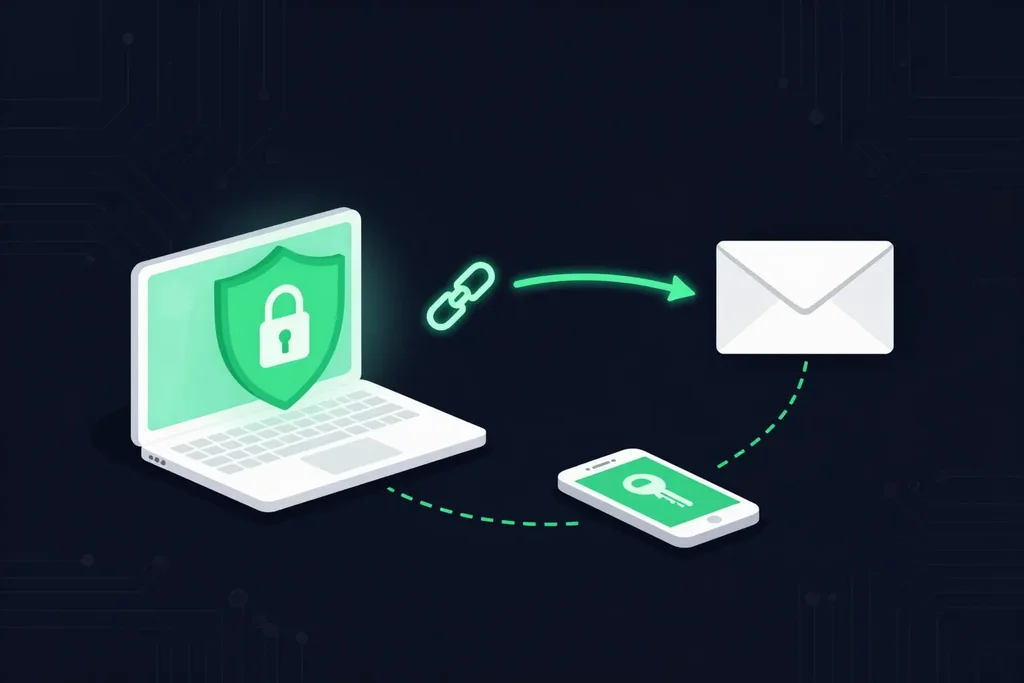
This is where SureSend comes into the picture. SureSend is a Canadian secure file transfer service that sends files through a passphrase-protected link that expires on a date you choose. It is built for documents that should not sit in an inbox. SureSend uses server-side encryption: files are protected with TLS in transit and AES-256 encryption at rest, with encryption keys managed by SureSend. Here is exactly how it works:
- Create a transfer. Sign in, add one or more recipient email addresses, upload your files, and choose an expiry date of up to 21 days.
- Set a passphrase. SureSend emails each recipient a secure link, but the passphrase is never included in that email. You share it separately, by phone or text.
- The recipient downloads. They open the link, enter the passphrase, and download the files. They do not need a SureSend account.
- Track and control it. Your dashboard shows when the transfer is retrieved. You can cancel it before it is downloaded, and it expires automatically.
After you send, SureSend reminds you to share the passphrase separately, and your dashboard shows when each transfer is retrieved.
The Secure Way to Send Documents Online
SureSend uses server-side encryption: TLS in transit and AES-256 encryption at rest, with keys managed by SureSend. Send up to 2 GB per transfer, protect it with a passphrase you share separately, set an expiry of up to 21 days, and see when it is retrieved. Your recipient needs no account. New subscribers get 30 days of Pro free, with no credit card required. Start sending securely for free.
What Are the Best Practices for Sending Documents Securely?
Verify the recipient, share passwords separately, set the shortest workable expiry, send only what is needed, and check that each transfer was retrieved.
- Verify the recipient’s email address before sending anything sensitive.
- Share passwords and passphrases by phone or text, never in the same email.
- Set the shortest expiry that still works for the recipient.
- Send only the documents the recipient needs.
- Check whether each transfer was retrieved, and follow up if not.
- Write down which documents require secure sending, so your whole team follows the same rule.
Frequently Asked Questions
What is the most secure way to send documents?
For most businesses, an encrypted file transfer service: the file is encrypted, access requires a passphrase shared separately, the link expires, and you can see when it was retrieved.
How do I send secure documents via email?
Use Gmail’s confidential mode or Outlook’s Encrypt option, or attach an AES-256 password-protected file and share the password separately. For large or regulated documents, send a secure transfer link instead.
Is Gmail confidential mode encrypted?
It prevents forwarding, copying, printing, and downloading, and lets you set an expiry and a passcode. It does not stop screenshots, and it relies on Gmail’s standard encryption rather than encrypting the file itself.
Is email secure enough for sensitive documents?
Standard email is generally not. Messages can be misdirected, forwarded, and retained indefinitely, with no expiry or access control.
How does SureSend encrypt files?
SureSend uses server-side encryption: files are protected with TLS in transit and AES-256 encryption at rest, with encryption keys managed by SureSend.
Can I control how long a shared document stays available?
Yes. SureSend transfers expire on the date you choose, up to 21 days, and you can cancel a transfer before it is downloaded.
Sources
This article draws on the following sources.
- Google. Send and open confidential emails. support.google.com
- Microsoft. Send encrypted messages with a Microsoft 365 personal or family subscription. support.microsoft.com
- IBM. Cost of a Data Breach Report. ibm.com
- Office of the Privacy Commissioner of Canada. The Personal Information Protection and Electronic Documents Act (PIPEDA). priv.gc.ca
The Bottom Line
Knowing how to send documents securely comes down to three questions: who can open the file, for how long, and whether you will know when they did. Plain email cannot answer any of them.
Choose the method that can. Then send it the right way.