You are about to email a client their signed contract, a bank statement, or a spreadsheet of employee details. You hover over Send and wonder: if this lands in the wrong inbox, or someone intercepts it, what can they read?
Outlook has encryption built in, but it is not switched on by default and the button is in a different place in every version. This guide shows you how to encrypt email in Outlook step by step: in new Outlook for Windows, classic Outlook, Outlook on the web, and on Mac and mobile. It also explains the two types of encryption, what your recipient sees, and when a different tool is the better choice.
Quick Summary
- Outlook offers two kinds of encryption: S/MIME (certificate-based) and Microsoft Purview Message Encryption (Encrypt and Do Not Forward).
- Either one needs a qualifying Microsoft 365 subscription, and S/MIME also needs certificates set up for you and your recipient.
- In most versions, you encrypt a single message from Options > Encrypt while composing.
- Recipients on Gmail or Yahoo can still read Purview-encrypted mail through a secure web portal.
- Encrypted Outlook messages are capped at 100 MB, so very large or highly sensitive files often travel better through a dedicated secure transfer.
In This Guide
- What Do You Need Before Encrypting Email in Outlook?
- S/MIME or Microsoft Purview: Which Encryption Should You Use?
- New Outlook for Windows
- How Do You Encrypt Email in Classic Outlook?
- Outlook on the Web
- Can You Encrypt Email in Outlook for Mac, iPhone and Android?
- How Do You Encrypt All Outgoing Emails Automatically?
- Encrypting From the Subject Line
- What Does Your Recipient See?
- What Are the Limits of Outlook Encryption?
- What If Your File Is Too Large or Sensitive for Outlook?
- FAQ
- Sources
- The Bottom Line
What Do You Need Before Encrypting Email in Outlook?
You need a qualifying Microsoft 365 subscription, to know which Outlook version you use, and, if you use S/MIME, certificates for you and your recipient.
Encrypting an email converts it from readable text into scrambled cipher text. Only a recipient with the right key can turn it back into something readable. Before you can encrypt email in Outlook, check three things:
- A qualifying subscription. Microsoft says encryption requires a qualifying Microsoft 365 subscription. Many business plans include Microsoft Purview Message Encryption; your IT administrator can confirm what your account has.
- Your Outlook version. New Outlook for Windows, classic Outlook, Outlook on the web, Outlook for Mac, and the mobile apps each put the option in a slightly different place.
- Certificates, if you use S/MIME. S/MIME needs a digital certificate on your side and, for external recipients, their certificate installed on your machine.
S/MIME or Microsoft Purview: Which Encryption Should You Use?
Use Microsoft Purview Message Encryption for everyday client email, because recipients outside Microsoft 365 can read it through a secure portal. Use S/MIME if your organization already manages certificates.
Outlook gives you two different encryption technologies. Picking the right one depends mostly on who you are sending to.
S/MIME
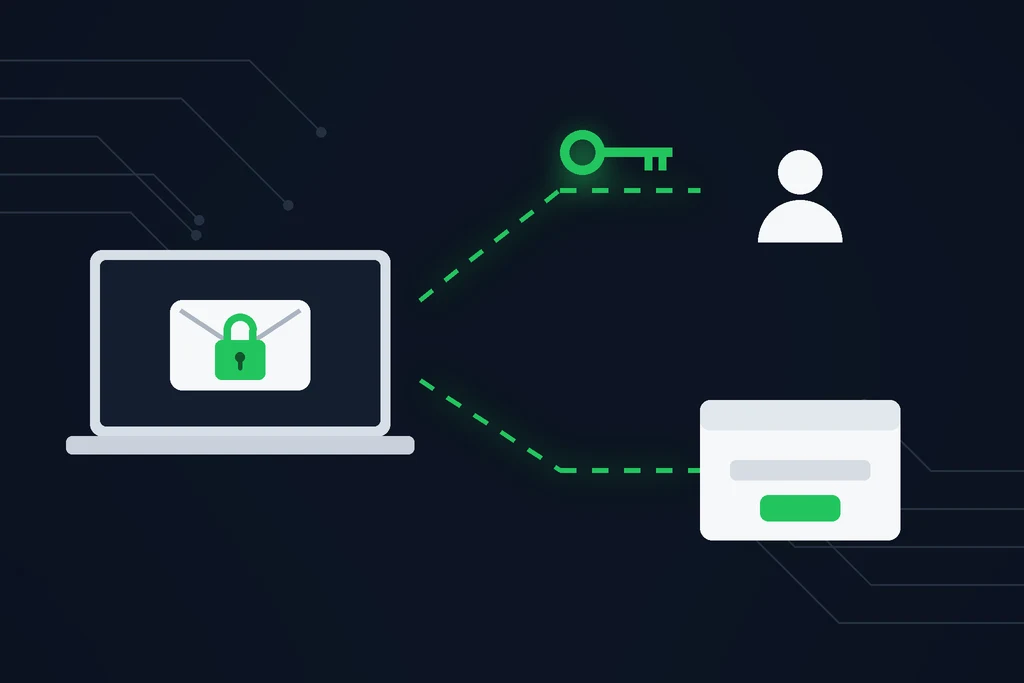
S/MIME encrypts the message with the recipient’s public key. Only the person holding the matching private key can decrypt it. It is strong, but setup is the hurdle: both people need certificates, and you must have the recipient’s certificate before you can send them an encrypted message. It suits organizations that already manage certificates, such as government and large enterprises.
Microsoft Purview Message Encryption
Microsoft Purview Message Encryption (the successor to Office 365 Message Encryption, which Microsoft has deprecated) is built on Azure Rights Management. You choose Encrypt or Do Not Forward and Outlook handles the keys. According to Microsoft’s documentation, it works with Outlook.com, Yahoo, Gmail, and other email services, and it also encrypts replies from recipients.
| S/MIME | Microsoft Purview Message Encryption | |
|---|---|---|
| Setup | Certificates for sender and recipient | Enabled by your Microsoft 365 admin |
| Recipient needs | A certificate and a compatible email client | Outlook, or any email account via a secure web portal |
| Options | Encrypt, digitally sign | Encrypt, Do Not Forward, custom templates |
| Best for | Organizations that already manage certificates | Everyday business email to external clients |
| Encrypted message size limit | Your organization’s normal message limit | 100 MB |
How to Encrypt Email in Outlook (New Outlook for Windows)
New Outlook for Windows supports both types. To encrypt one message with Microsoft Purview:
- Open a new email and select the Options tab.
- Select Encrypt, then pick the option with the restrictions you want, such as Encrypt or Do Not Forward.
- Finish writing your email, add attachments, and select Send.
To use S/MIME instead, go to Options > More options, tick Encrypt this message (S/MIME), and select OK. If Outlook cannot confirm that every recipient can decrypt the message, it shows a warning naming them. You can send anyway, remove those recipients, or check again. Microsoft notes that you should not apply Purview protection to a message that is already encrypted with S/MIME, or the other way round.
How Do You Encrypt Email in Classic Outlook?
In classic Outlook for Windows (the version included with Microsoft 365, Outlook 2024, 2021, 2019, and 2016):
- Create a new message.
- Select Options > Encrypt.
- Choose the encryption option with the restrictions you need, such as Do Not Forward.
- Finish composing and select Send.
The recipient sees the message only after it is decrypted. With Do Not Forward, they can read it but cannot forward, print, or copy it.
How to Encrypt Email in Outlook on the Web
For S/MIME in Outlook on the web (the browser version of Outlook for work and school accounts), you first need the S/MIME control installed. Then:
- Start a new message.
- At the top of the message, select More options (the three dots) > Message options.
- Tick Encrypt this message (S/MIME) and select OK.
- Write your message and select Send.
Microsoft Purview Message Encryption also works in Outlook on the web when your organization has it set up. Microsoft’s guide to S/MIME in Outlook on the web covers installing the control.
Can You Encrypt Email in Outlook for Mac, iPhone and Android?
Outlook for Mac supports both S/MIME and Microsoft Purview encryption. When your account qualifies, the encryption options appear while you compose a new message. Microsoft publishes separate instructions for Mac because the menus differ from Windows.
On iPhone and Android, the Outlook app can read encrypted and rights-protected messages natively for Microsoft 365 accounts. Keep attachment sizes in mind: Exchange Online limits cap messages sent from Outlook for iOS and Android at 33 MB, compared with 150 MB from Outlook on the desktop.
How Do You Encrypt All Outgoing Emails Automatically?
If you send sensitive email all day, you can make S/MIME encryption the default instead of remembering every time:
- Classic Outlook: File > Options > Trust Center > Trust Center Settings > Email Security, then tick Encrypt contents and attachments for outgoing messages.
- New Outlook and Outlook on the web: Settings > Mail > S/MIME, then select Encrypt contents and attachment for all messages I send.
This applies to new messages, replies, and forwards. Every recipient must be able to decrypt S/MIME messages, so it works best when all your contacts use certificates.
Can You Encrypt an Outlook Email From the Subject Line?
Only if your administrator has set it up. There is no built-in keyword that encrypts a message. But Microsoft 365 administrators can create mail flow rules that encrypt any message whose subject contains a chosen word, such as [secure] or encrypt, or any message sent to certain recipients. If your organization uses one, your IT team will tell you the word to type. Otherwise, adding it to the subject does nothing, and the email goes out unencrypted.
What Does Your Recipient See?
Recipients who use Outlook with a Microsoft 365 account read Purview-encrypted messages just like normal email. People on Gmail, Yahoo, and other services receive a notification email that directs them to Microsoft’s encrypted message portal, where they sign in to read and reply. S/MIME recipients need a certificate and a client that supports it; without one, they see an unreadable message.
That extra step is worth explaining to clients in advance, especially if they rarely receive encrypted email.
What Are the Limits of Outlook Encryption?
Outlook encryption protects the message, but encrypted messages are capped at 100 MB, it depends on having the right plan and setup, files still sit in inboxes indefinitely, and recipients outside Microsoft 365 face extra steps.
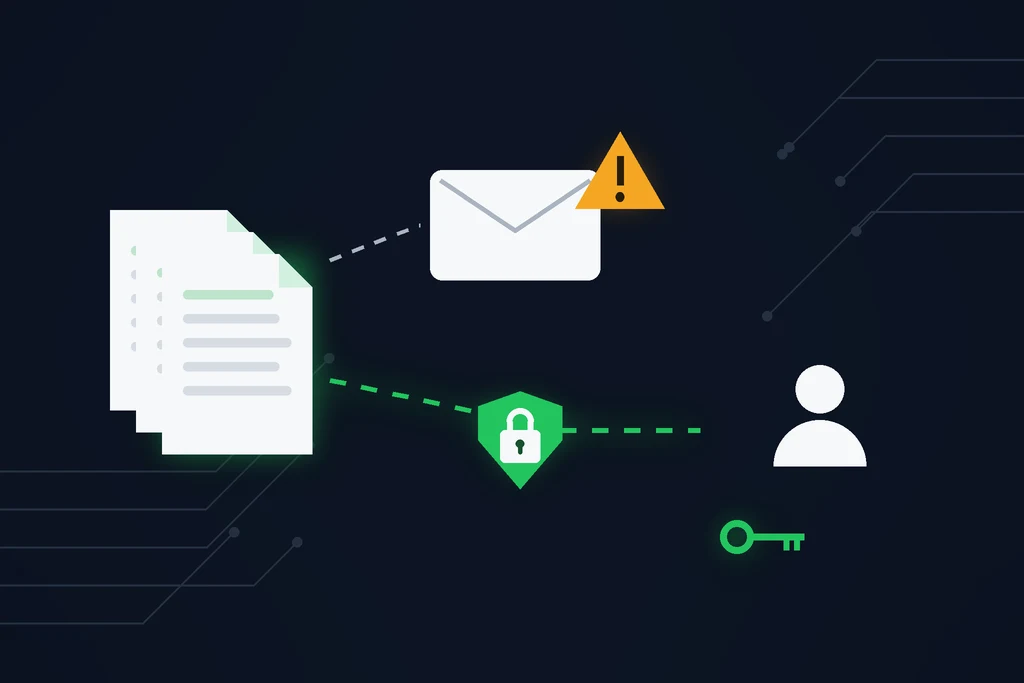
Outlook encryption protects the message, but it does not solve every problem with sending sensitive files by email:
- Size caps. Microsoft limits Purview-encrypted messages to 100 MB, and many organizations set lower limits. Video, scans, and design files quickly exceed that.
- It depends on the right plan and setup. Without a qualifying subscription, or without certificates for S/MIME, the Encrypt option may not be available at all.
- Files sit in inboxes indefinitely. Expiry and revocation are only available with Advanced Message Encryption, set by an administrator, and only for recipients who read through the web portal.
- Recipient friction. Portals and certificates confuse some recipients, who then ask for the file “the normal way”.
If you only need to shrink a file, our guide on how to create a zip file to send via email helps. For confidential material, see how to send documents securely for a comparison of safer methods, and why encryption is important for the background on how encryption protects data.
What If Your File Is Too Large or Sensitive for Outlook?
When the attachment is too big, the recipient is outside Microsoft 365, or you want the file to disappear after a set time, a secure transfer service is often easier than encrypted email. SureSend is a Canadian secure file transfer service that sends files through a passphrase-protected link that expires on a date you choose. SureSend uses server-side encryption: files are protected with TLS in transit and AES-256 encryption at rest, with encryption keys managed by SureSend. Here is how it works:
- Create a transfer. Sign in, add one or more recipient email addresses, upload your files, and choose an expiry date of up to 21 days.
- Set a passphrase. SureSend emails each recipient a secure link, but the passphrase is never included in that email. You share it separately, by phone or text.
- The recipient downloads. They open the link, enter the passphrase, and download the files. They do not need a SureSend account.
- Track and control it. Your dashboard shows when the transfer is retrieved. You can cancel it before it is downloaded, and it expires automatically.
After you send, SureSend reminds you to share the passphrase separately, and your dashboard shows when each transfer is retrieved.
| Outlook encryption | SureSend | |
|---|---|---|
| Maximum size | 100 MB (Purview), often lower | 2 GB per transfer (Pro) |
| Recipient needs | Outlook, a portal sign-in, or a certificate | The link and the passphrase; no account |
| Expiry | Admin-configured, portal only | Set by you, up to 21 days |
| Delivery status | Read receipts where supported | Dashboard shows Retrieved, Expired, or Cancelled |
Send Files Outlook Can’t Handle
SureSend uses server-side encryption: TLS in transit and AES-256 encryption at rest, with keys managed by SureSend. Send up to 2 GB per transfer, protect it with a passphrase you share separately, set an expiry of up to 21 days, and see when it is retrieved. Your recipient needs no account. New subscribers get 30 days of Pro free, with no credit card required. Start sending securely for free.
Good habits matter as much as tools. Our guide to document confidentiality covers the everyday practices that prevent leaks.
Frequently Asked Questions
How do I encrypt an email in Outlook?
In a new message, select Options > Encrypt and choose Encrypt or Do Not Forward, then send. In Outlook on the web, use More options > Message options > Encrypt this message (S/MIME). The exact steps depend on your version and subscription.
How do I encrypt email in Outlook 365?
Outlook for Microsoft 365 supports Microsoft Purview Message Encryption. Select Options > Encrypt while composing and pick the protection level. If you don’t see the button, ask your administrator whether your plan includes message encryption.
Why don’t I see the Encrypt button in Outlook?
Usually because your account doesn’t have a qualifying Microsoft 365 subscription, message encryption hasn’t been set up by your administrator, or, for S/MIME, no certificate is installed.
Can Gmail users open an encrypted Outlook email?
Yes, with Microsoft Purview Message Encryption. Gmail and Yahoo recipients get a notification that takes them to Microsoft’s encrypted message portal, where they sign in to read and reply.
Is Outlook email encrypted by default?
Messages between mail servers are usually protected in transit, but the message itself is not encrypted unless you or your organization apply S/MIME or Microsoft Purview Message Encryption.
How do I send a large file securely from Outlook?
Encrypted Outlook messages are limited to 100 MB. For bigger files, use a secure transfer service such as SureSend, which sends up to 2 GB per transfer with a passphrase you share separately.
Sources
This article draws on the following sources.
- Microsoft Support. Send S/MIME or Microsoft Purview encrypted emails in Outlook. support.microsoft.com
- Microsoft Support. Encrypt messages by using S/MIME in Outlook on the web. support.microsoft.com
- Microsoft Learn. Microsoft Purview Message Encryption. learn.microsoft.com
- Microsoft Learn. Define mail flow rules to encrypt email messages. learn.microsoft.com
- Microsoft Learn. Exchange Online limits. learn.microsoft.com
- Canadian Centre for Cyber Security. Baseline cyber security controls for small and medium organizations. cyber.gc.ca
The Bottom Line
Knowing how to encrypt email in Outlook is a useful skill: pick Purview for everyday client email, S/MIME if your organization already uses certificates, and set a default if you send sensitive mail often. The Canadian Centre for Cyber Security recommends protecting sensitive information in transit as a baseline control for small and medium organizations.
For large files, or when you want control over when a file expires, send it through a secure transfer instead.