

To send large files through Outlook, upload the file to OneDrive and send a link to it instead of attaching a copy. Outlook can do this for you from the attachment menu. The link keeps the email small, so it gets past the attachment size limit that would otherwise bounce your message.
You have a 300 MB folder of scanned contracts. Or a video. Or a set of drawings. You attach it, press Send, and Outlook tells you the file is too large.
This guide explains the Outlook attachment size limit for each kind of account, how to send a large file as a OneDrive link in every version of Outlook, and what to do when the file is also confidential.
Quick Summary
- The Outlook attachment size limit depends on your account and app: Outlook.com allows 25 MB attachments, and Microsoft 365 mailboxes default to 35 MB for sending.
- The fix in every version of Outlook is the same: upload the file to OneDrive and send a link instead of a copy.
- Microsoft says OneDrive file attachments can be up to 2 GB in Outlook.
- Check the link's permissions before you send. In a business account, everyone in your organization can edit a linked file by default.
- For confidential files, use a link protected by a passphrase you share separately, with an expiry date.
What Is the Outlook Attachment Size Limit?
The Outlook attachment size limit depends on the type of account and the app you use. Microsoft lists 25 MB for attachments in Outlook.com, a default of 35 MB for sending from Microsoft 365 mailboxes (adjustable by your administrator up to 150 MB), and a 33 MB message limit in Outlook for iOS and Android (as of October 2026).
| Account or app | Limit Microsoft publishes | Source |
|---|---|---|
| Outlook.com (personal) | 25 MB per attachment; OneDrive files up to 2 GB | Sending limits in Outlook.com |
| Microsoft 365 mailbox (work or school) | 35 MB to send and 36 MB to receive by default; admins can set 1 MB to 150 MB | Exchange Online limits |
| Outlook on the web (Microsoft 365) | 112 MB per message | Exchange Online limits |
| Outlook for iOS and Android (Microsoft 365) | 33 MB per message | Exchange Online limits |
| Outlook app with an internet account such as Gmail | 20 MB per email, attachment included | Reduce attachment size to send large files |
Figures as published by Microsoft and checked on October 25, 2026. Microsoft's own pages do not always agree: its Outlook help page on large files gives 20 MB for internet accounts and 10 MB by default for Exchange business accounts, while the Exchange Online limits page lists a 35 MB default for Microsoft 365 mailboxes. The practical answer: your real limit is the lowest one between your app, your mail server and your recipient's mail server.
Microsoft also notes that messages leaving its data centres grow by about a third when they are encoded for sending, so the largest message you can send outside Microsoft 365 is 112 MB, even when the limit is set to 150 MB.
Why Does Outlook Say My File Is Too Large?
Outlook says a file is too large when the attachment, plus the message itself, goes over the limit set by your app or your mail server. Even if Outlook lets it through, the recipient's mail server can reject it, and you get a non-delivery report (a bounce message) instead. If you also use Gmail, here is how to send large files in Gmail past its 25 MB limit.

- Your app's limit. Outlook on the web, the desktop app and the mobile apps each have their own ceiling.
- Your organization's limit. Microsoft 365 administrators can lower or raise the message size limit, for everyone or per person.
- The recipient's limit. Microsoft's documentation says messages larger than the limit "won't be delivered, and the sender will receive a non-delivery report." Their provider's limit may be lower than yours.
- Encoding overhead. Attachments are encoded for sending, which makes them larger than the file on your computer.
Your recipient's inbox matters too. A 30 MB file that leaves your Outlook can still bounce at a client whose mail server accepts only 20 MB.
How to Send Large Files Through Outlook With OneDrive
To send large files through Outlook, attach the file as usual, then choose to upload it to OneDrive so Outlook sends a link instead of a copy. Your recipient opens the link to view or download the file. Microsoft says OneDrive files can be up to 2 GB when shared this way from Outlook.com.
Microsoft's attachment guide says sending a link "keeps the size of your email message small" and suggests uploading to OneDrive "if the file is too large to share as a traditional attachment." The steps differ slightly by version.
New Outlook for Windows
- On the Message tab, select Attach File, then Browse This PC, and choose the file.
- In the email, select the down arrow next to the attachment.
- Choose Upload to OneDrive and pick the location. The file appears as a link.
- Select the link to set permissions, such as Recipients can View, then send.
Classic Outlook for Windows
- Select Attach File > Browse This PC and choose the file.
- Select the down arrow for the attachment, then Upload > OneDrive.
- Select the attachment link, then Manage access, and choose who the link works for, such as Recipients of this message.
- Under More settings, pick Can view and, if you want, set an expiration date. Then send.
Outlook on the Web and Outlook.com
- In a new message, select Attach file, then OneDrive.
- Choose the file (upload it to OneDrive first if it is only on your computer) and select Next.
- Microsoft notes that all recipients can view or edit a linked file. To restrict editing, open the attachment's menu and select Manage access.
Outlook for Mac
In a new email, select Attach File, then OneDrive, and choose the file from your connected account. For a file already attached from your Mac, select the drop-down arrow next to it and choose Upload to OneDrive. Microsoft's Mac guide also notes that when you attach a folder, Outlook for Mac compresses it into a single .zip file.
Outlook for iPhone and Android
Tap the paperclip icon, then Attach file, choose the file, and tap Insert OneDrive for Business Link, as described in Microsoft's mobile guide. With a 33 MB message limit in the mobile apps, a link is the practical way to send anything larger from a phone.
Can You Compress a File to Fit Outlook's Limit?
Yes, sometimes. Microsoft suggests zipping a file because compression "might decrease it enough to fit within the Outlook size limits for attachments."
Our step-by-step guide on how to create a zip file to send by email covers Windows, Mac and phones. For video, see how to compress a video file and send it securely. If the zipped file is still over the limit, send a link.
Attachment, OneDrive Link or Secure Transfer: Which Should You Use?
Use a normal attachment for small, non-sensitive files, a OneDrive link for large files you share with colleagues or regular contacts, and a secure transfer with a passphrase for large files that contain personal, financial or legal information.
| Outlook attachment | OneDrive link from Outlook | SureSend transfer | |
|---|---|---|---|
| Size | About 20 to 35 MB for most accounts | Up to 2 GB (Outlook.com) | Up to 2 GB per transfer (Pro) |
| Recipient needs | Nothing | The link; access depends on the link's settings | The link and the passphrase; no account |
| Who can open it | Anyone who gets the email | Depends on the link's permission settings | Only someone with the passphrase |
| Expiry | None; the copy stays in inboxes | Optional, for Microsoft 365 subscribers | Always, on a date you set, up to 21 days |
For a wider comparison of file-sending services, see WeTransfer vs Dropbox Transfer and our list of WeTransfer alternatives.
Is It Safe to Send Large Files as a OneDrive Link?
A OneDrive link is safe when its permissions match the file. The risk is in the settings: in a business account, Microsoft says everyone in your organization can edit a linked file by default, and links set to work for anyone can be opened by whoever receives a forwarded copy.
- Check who the link works for. For a client, choose only the recipients of the message, with view-only access.
- Set a password and an expiry date where you can. Microsoft's sharing guide says Microsoft 365 subscribers can set both on a link, and that "you'll need to provide this password separately."
- Never put the password in the same email. Anyone who sees the email then has both halves. Call or text it instead.
- Stop sharing when the job is done. Remove the link or delete the file from OneDrive once the recipient has it.
Canada's private-sector privacy law, PIPEDA, says personal information "shall be protected by security safeguards appropriate to the sensitivity of the information." Our guides on whether email is secure and how to encrypt email in Outlook explain what email protects and what it does not.
A Simpler Way to Send Large, Sensitive Files
This is where SureSend comes into the picture. SureSend is a Canadian secure file transfer service that sends files through a passphrase-protected link that expires on a date you choose. SureSend encrypts every file while it's sent and while it's stored (TLS in transit, AES-256 at rest). It is built for files that are too large for an Outlook attachment and too sensitive for an open share link: tax records, legal files, medical reports, payroll and client scans.
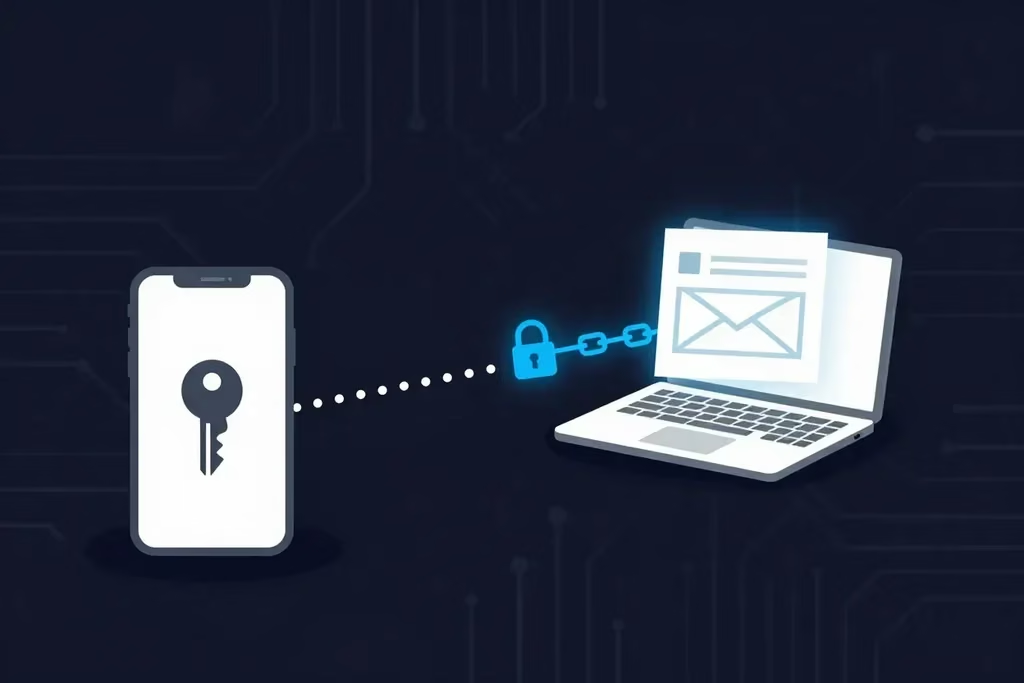
Here is exactly how it works:
- Create a transfer. Sign in, add one or more recipient email addresses, upload your files, and choose an expiry date of up to 21 days.
- Set a passphrase. SureSend emails each recipient a secure link, but the passphrase is never included in that email. You share it separately, by phone or text.
- The recipient downloads. They open the link, enter the passphrase, and download the files. They do not need a SureSend account.
- Track and control it. Your dashboard shows when the transfer is retrieved. You can cancel it before it is downloaded, and it expires automatically.
Each transfer allows one successful download. If the download is interrupted, the recipient can try again until one download completes; after that the link cannot be used again, and the transfer's status updates to Retrieved.
Your dashboard shows every transfer's status, so you know when a client has retrieved the file and which links have expired or been cancelled.
You can start on the free Starter plan. Pro is $7 CAD/month plus applicable taxes, with transfers up to 2 GB. SureSend doesn't keep your files forever; they're removed when the transfer expires. A secure transfer tool is one safeguard within your own privacy practices, not a compliance solution on its own.
Send Files Too Large for Outlook
SureSend encrypts every file while it's sent and while it's stored: TLS in transit and AES-256 encryption at rest. Send up to 2 GB per transfer, protect it with a passphrase you share separately, set an expiry of up to 21 days, and see when it is retrieved. Your recipient needs no account. New subscribers get 30 days of Pro free, with no credit card required. Start sending securely for free.
A Quick Workflow That Works
Use this order every time a file is too big for Outlook:
- Check the size. If it is under about 10 MB, attach it as usual.
- If it is a document or a folder of documents, try zipping it first.
- Still too large and not sensitive? Upload it to OneDrive from the attachment menu and send the link, view-only.
- Large and confidential? Send it through a secure transfer with an expiry date.
- Share the passphrase by phone or text, never in the same email.
- Check that the recipient has retrieved it, then let the link expire.
If you can send an email, you can SureSend a file.
Frequently Asked Questions
What is the maximum attachment size in Outlook?
It depends on the account. Microsoft lists 25 MB for attachments in Outlook.com and a default of 35 MB for sending from Microsoft 365 mailboxes, which administrators can raise to 150 MB. Your recipient's mail server may accept less.
How do I send a file larger than 25 MB in Outlook?
Upload it to OneDrive and send a link. Attach the file, select the down arrow next to it, and choose Upload to OneDrive (Upload > OneDrive in classic Outlook). The email then carries a link instead of the file.
Can I increase the Outlook attachment size limit?
In Microsoft 365, an administrator can set a custom message size limit between 1 MB and 150 MB. Ask your IT administrator, and remember that a higher limit does not help if the recipient's server accepts less.
How big can a OneDrive file be when sent from Outlook?
Microsoft says OneDrive files shared from Outlook.com can be up to 2 GB, and its Exchange Online documentation also lists 2 GB for OneDrive file attachments. That is much larger than a normal attachment.
Why did my large email bounce?
The message was larger than a limit somewhere along the way, either your organization's or the recipient's. Messages over the limit are not delivered, and you receive a non-delivery report. Send a link instead.
How does SureSend protect files?
SureSend encrypts files in transit (TLS) and at rest (AES-256), and SureSend manages the encryption keys. The passphrase is never included in the email with the link.
Do recipients need an account to download a SureSend file?
No. Recipients open the link from the email, enter the passphrase you shared separately, and download the file. They do not need to sign up or install anything.
Sources
This article draws on the following sources. Limits were checked on October 25, 2026. Microsoft changes them from time to time, so confirm them on each page.
- Microsoft Learn. Exchange Online limits. learn.microsoft.com
- Microsoft Support. Reduce attachment size to send large files with Outlook. support.microsoft.com
- Microsoft Support. Sending limits in Outlook.com. support.microsoft.com
- Microsoft Support. Add pictures or attach files to emails in Outlook. support.microsoft.com
- Microsoft Support. Attach a file or folder to a message in Outlook for Mac. support.microsoft.com
- Microsoft Support. Send attachments and images in Outlook mobile. support.microsoft.com
- Microsoft Support. Share OneDrive files and folders. support.microsoft.com
- Microsoft Support. Restrictions and limitations in OneDrive and SharePoint. support.microsoft.com
- Government of Canada, Justice Laws. Personal Information Protection and Electronic Documents Act, Schedule 1, Principle 4.7 (Safeguards). laws-lois.justice.gc.ca
The Bottom Line
Knowing how to send large files through Outlook comes down to one habit: above the attachment limit, send a link, not the file. OneDrive handles everyday large files well when you check who the link works for. OneDrive's own upload limit is 250 GB per file, so size is rarely the problem; control is.
For files that are both large and confidential, add a passphrase and an expiry date. Then just SureSend it.