Is email secure? Everyday email is protected against casual eavesdropping, because most providers encrypt messages while they travel between servers. It is not secure enough on its own for sensitive files: messages sit readable on mail servers, can go to the wrong person, can be forwarded, and cannot be called back once sent.
You need to send a client their signed tax return. Or an employee’s T4. Or a scanned driver’s licence for a file.
The email is already open. The attachment is ready. You pause and ask yourself whether this is actually safe.
This guide gives you a straight answer. It explains what email encryption does and does not protect, the risks that cause most real problems, what is safe to send by email, and what to use instead when it is not.
Quick Summary
- Is email secure? Partly. Gmail and Microsoft 365 encrypt messages in transit with TLS by default, but every message is readable on the servers that handle it.
- TLS protects each hop only if both servers support it. The Canadian Centre for Cyber Security says you should not rely on TLS alone for sensitive information.
- Most email problems are human: a misdirected message, a phishing reply, a forwarded thread. Business email compromise losses reported to the FBI reached about $3.05 billion USD in 2025.
- Everyday business email is fine. SINs, banking details, health records, tax slips and ID scans need encryption or a secure transfer link.
- Safer options: S/MIME or Microsoft Purview Message Encryption for messages, and a passphrase-protected, expiring link for files.
In This Guide
Is Email Secure?
Email is secure enough for routine business messages, but not for sensitive personal or financial information sent as plain text or attachments. Encryption in transit stops most interception, yet it does not stop a message from being misdirected, forwarded, stored indefinitely, or read by anyone who gets into either mailbox.
The Canadian Centre for Cyber Security puts it plainly in its email security best practices (ITSM.60.002, August 2025): email “was not initially designed with security and privacy in mind,” and the encryption and authentication protocols used today “were added later.” Those add-ons work well, but only where both sides use them, and only for the part of the journey they cover.
So the honest answer to “is email secure” depends on two questions. What are you sending? And what happens to it after it arrives? The rest of this guide works through both.
Is Email Encrypted?
Most email is encrypted in transit, not at the message level. Gmail and Microsoft 365 use Transport Layer Security (TLS) automatically to encrypt the connection between mail servers. TLS protects the message while it moves, but the sending and receiving servers can still read it, and it is stored in readable form in both mailboxes.
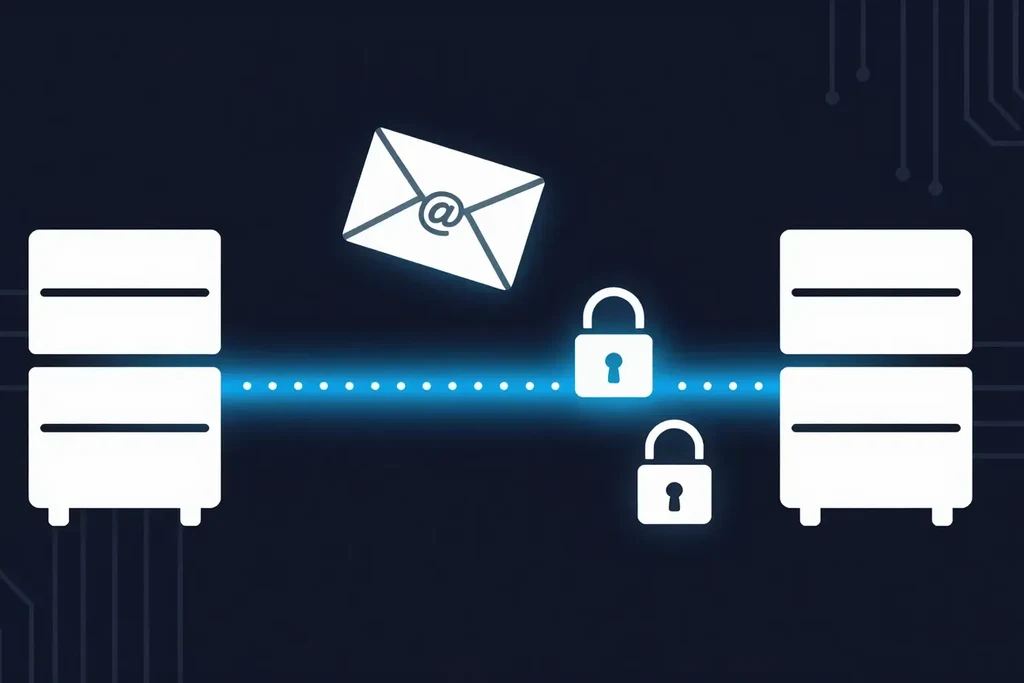
Google’s Gmail Help page on encryption in transit says “all Gmail messages use TLS automatically” and that the message is protected if the recipient’s provider also uses it. When it does not, Gmail shows a red open padlock, which means the message was not encrypted. Microsoft’s documentation says Microsoft 365 uses TLS “to encrypt the connection, or session, between two servers” by default, with nothing to configure.
Why TLS Alone Is Not Enough
Email often passes through several servers before it reaches the recipient. The STARTTLS extension, defined in RFC 3207 in 2002, upgrades a connection to TLS only when both servers support it; otherwise, mail can still be delivered unencrypted. Domain owners can publish an MTA-STS policy (RFC 8461) to tell sending servers to deliver mail to them only over TLS.
The Cyber Centre’s guidance makes the same point: “there is no guarantee that subsequent transfers will employ TLS encryption,” and “you should not rely solely on TLS to protect sensitive information unless you trust the receiving infrastructure and the organization operating the email servers.” It also notes that a TLS-protected email is decrypted and stored as plaintext on the recipient’s system once it arrives.
Message-Level Encryption
S/MIME and PGP encrypt the message itself, so it stays encrypted on the servers and only the recipient can open it. They work well inside organizations that manage certificates, but both sides need the right setup, and the subject line and headers stay visible. Our guides on how to encrypt email in Outlook and how to send a secure email in Gmail walk through what each client offers.
What Are the Biggest Email Security Risks?
The biggest email security risks are human, not technical: sending a message to the wrong address, replying to a phishing or business email compromise message, a hacked mailbox, and sensitive attachments that stay in inboxes and sent folders for years. Encryption in transit does not prevent any of them.
- Misdirected email. Auto-complete fills in the wrong “Michael” and a client file goes to a stranger. Once sent, a message to an outside address cannot be recalled.
- Business email compromise. A criminal impersonates a supplier, a lawyer or an executive and asks for a payment or a document. The FBI’s 2025 Internet Crime Report recorded business email compromise losses of $3,046,598,558 USD in that year alone, second only to investment fraud.
- Compromised accounts. If someone gets into your mailbox or your client’s, every attachment ever exchanged is theirs to read. Years of tax slips and ID scans make that mailbox valuable.
- Copies that never go away. An attachment lives in your sent folder, the recipient’s inbox, their phone, their backups, and every inbox it is forwarded to.
- The password in the same email. A password-protected PDF is only protected if the password travels another way. Our guide to password protecting a PDF explains why.
Notice that none of these depend on someone breaking encryption. They depend on where the message goes and how long it stays there. That is why the type of information matters more than the email provider you use.
What Is Safe to Send by Email?
It is generally safe to send routine business information by email: meeting times, general questions, invoices without banking details, and documents that are already public. Information that could cause harm if it leaked, such as a Social Insurance Number, banking details, health records, tax slips or ID scans, should not travel as a plain email or attachment.
A simple test: if this email were forwarded to the wrong person, would anyone be harmed? If the answer is yes, use a safer channel. Here is how common documents compare:
| What you are sending | Plain email? | Safer option |
|---|---|---|
| Meeting notes, general questions, public brochures | Fine | No change needed |
| Invoices and quotes (no banking details) | Usually fine | Confirm the address before sending |
| Contracts and signed agreements | Risky | Encrypted email or a secure transfer link |
| Tax slips (T4, T5) and tax returns | Avoid | Secure transfer link with a separate passphrase |
| Social Insurance Number or ID scans | Avoid | Secure transfer link, phone, or in person |
| Banking details and void cheques | Avoid | Secure transfer link; confirm changes by phone |
| Health records and medical reports | Avoid | Secure transfer link or the clinic’s patient portal |
| Passwords and passphrases | Never in the same email | Phone call or text message |
Is It Safe to Email Your SIN?
No. Employment and Social Development Canada’s guidance on protecting your SIN says to “never disclose your SIN where privacy cannot be assured” and to be cautious of emails from unknown sources that request personal information. A plain email cannot assure privacy, so share a SIN only through a secure channel and only when it is legally required.
Payroll teams face this every winter. Our guide to sending T4 slips safely covers the options, and how to send documents securely online compares six methods side by side.
How Can You Make Email More Secure?
To make email more secure, turn on multi-factor authentication, use message encryption such as S/MIME or Microsoft Purview Message Encryption for sensitive messages, send passwords by a separate channel, and move sensitive files out of attachments into an expiring, passphrase-protected link. Each step closes a different gap.
- Protect the mailbox. Turn on multi-factor authentication for every account. A stolen password should not be enough to read years of mail.
- Slow down the send. Turn off auto-complete for external addresses or add a short send delay, so you can catch the wrong recipient.
- Encrypt sensitive messages. Microsoft says its Purview Message Encryption lets you send encrypted email to any address, including Gmail and Outlook.com. S/MIME suits organizations that exchange certificates.
- Verify requests. Confirm any request for payment, banking changes or personal documents by phone, using a number you already have.
- Keep files out of inboxes. The Cyber Centre suggests that a web portal protected with TLS, with data encrypted at rest, can be a more user-friendly way to transfer important documents than relying on people to apply S/MIME or PGP correctly.
- Admins: enforce TLS. Publish an MTA-STS policy and set up SPF, DKIM and DMARC so others cannot easily spoof your domain.
| Plain email | Encrypted email (S/MIME, Purview) | Secure file transfer link | |
|---|---|---|---|
| Encrypted in transit | Usually (TLS, if both servers support it) | Yes | Yes |
| Readable on mail servers | Yes | No (message body) | Only the link is in the email |
| Protects against a misdirected send | No | Partly (recipient must verify) | Yes, with a separate passphrase |
| Expires or can be cancelled | No | Depends on settings | Yes |
| Large files | Limited by attachment size | Limited by attachment size | Up to the service’s limit |
| Setup for the recipient | None | Certificate or sign-in | None beyond the passphrase |
For background on why encryption matters at all, see why encryption is important. For files that live on your own computer, our guide on how to encrypt a file covers Windows and Mac.
Where Does SureSend Fit?
This is where SureSend comes into the picture. SureSend is a Canadian secure file transfer service that sends files through a passphrase-protected link that expires on a date you choose. SureSend encrypts every file while it’s sent and while it’s stored (TLS in transit, AES-256 at rest). It was built for Canadian professionals who send sensitive documents to clients, colleagues and other organizations, and who would rather not leave those documents sitting in inboxes.
The email your recipient gets contains a link, never the file and never the passphrase. If that email goes to the wrong person, the link alone opens nothing.
Here is exactly how it works:
- Create a transfer. Sign in, add one or more recipient email addresses, upload your files, and choose an expiry date of up to 21 days.
- Set a passphrase. SureSend emails each recipient a secure link, but the passphrase is never included in that email. You share it separately, by phone or text.
- The recipient downloads. They open the link, enter the passphrase, and download the files. They do not need a SureSend account.
- Track and control it. Your dashboard shows when the transfer is retrieved. You can cancel it before it is downloaded, and it expires automatically.
Each transfer allows one successful download. If the download is interrupted, the recipient can try again until one download completes; after that the link cannot be used again, and the transfer’s status updates to Retrieved.
Your dashboard shows each transfer’s status, so you know when a document has been retrieved, has expired, or was cancelled before anyone opened it.
You can start on the free Starter plan. Pro is $7 CAD/month plus applicable taxes, with transfers up to 2 GB. A secure transfer tool is one control within your own privacy practices under laws such as PIPEDA, not a compliance solution on its own.
Send Sensitive Files Without Leaving Copies in Inboxes
SureSend encrypts every file while it’s sent and while it’s stored: TLS in transit and AES-256 encryption at rest. Send up to 2 GB per transfer, protect it with a passphrase you share separately, set an expiry of up to 21 days, and see when it is retrieved. Your recipient needs no account. New subscribers get 30 days of Pro free, with no credit card required. Start sending securely for free.
A Quick Workflow That Works
Before you press send on anything sensitive, run through these steps:
- Ask the forwarding test: would anyone be harmed if this reached the wrong person?
- If not, send it by email as usual, and double-check the address.
- If yes, upload the file to a secure transfer service instead of attaching it.
- Set the shortest expiry that works for the recipient.
- Share the passphrase by phone or text, never in the same email.
- Check the status, and cancel the transfer at once if it went to the wrong address.
If you can send an email, you can SureSend a file. Our article on document confidentiality covers the everyday habits that keep it that way.
Frequently Asked Questions
Is Gmail secure?
Gmail encrypts messages in transit with TLS automatically and protects accounts with features such as two-step verification. Messages are still readable on Google’s servers and in the recipient’s mailbox, so Gmail on its own is not suitable for highly sensitive files such as ID scans or tax slips.
Is Outlook email secure?
Outlook and Microsoft 365 encrypt the connection between mail servers with TLS by default. For sensitive messages, Microsoft 365 also offers Microsoft Purview Message Encryption and S/MIME, which protect the message itself rather than only the connection.
Is email secure for sensitive data?
Not on its own. The Canadian Centre for Cyber Security advises against relying solely on TLS to protect sensitive information. Use message encryption or a secure, expiring transfer link, and share any password or passphrase separately.
Is email encrypted in transit?
Usually. Major providers such as Gmail and Microsoft 365 use TLS by default, but each hop is only encrypted if both servers support it. If the recipient’s server does not, the message can be delivered unencrypted.
Is it safe to email a Social Insurance Number or Social Security number?
No. A plain email cannot guarantee privacy, and Canada’s guidance is to never disclose your SIN where privacy cannot be assured. Share it only when legally required, through a secure channel such as an encrypted transfer link or by phone.
Can I send tax documents by email?
It is safer not to. Tax slips and returns contain your SIN, income and address. Use a secure file transfer link with a passphrase shared by phone, or your accountant’s client portal.
Is a password-protected attachment secure?
It is only as secure as the password and how you share it. A strong password sent by phone or text adds real protection; a password sent in the same email adds almost none.
Sources
This article draws on the following sources.
- Canadian Centre for Cyber Security. Email security best practices (ITSM.60.002), effective August 21, 2025. cyber.gc.ca
- Gmail Help. Email encryption in transit. support.google.com
- Microsoft Learn. Email encryption in Microsoft 365. learn.microsoft.com
- Federal Bureau of Investigation, Internet Crime Complaint Center. 2025 Internet Crime Report. ic3.gov
- Employment and Social Development Canada. Protecting your SIN. canada.ca
- Internet Engineering Task Force. RFC 3207: SMTP Service Extension for Secure SMTP over Transport Layer Security (2002). rfc-editor.org
- Internet Engineering Task Force. RFC 8461: SMTP MTA Strict Transport Security (MTA-STS) (2018). rfc-editor.org
The Bottom Line
Is email secure? For everyday messages, yes, reasonably. For a SIN, a tax slip, a bank account number or a medical report, no. Encryption in transit protects the trip, not the inbox, the wrong recipient or the forwarded thread.
Keep email for the conversation. Send the sensitive file another way. Just SureSend it.