To send a secure email in Gmail, you have three built-in choices: standard TLS encryption, which Gmail applies automatically; confidential mode, which adds an expiry date and a passcode; and S/MIME or client-side encryption, which are available only on certain Google Workspace plans. Each protects something different.
You have a tax return to send. Or a signed offer letter. Or a scan of someone’s passport. You open Gmail, attach the file, and pause. Is this actually safe?
This guide explains how to send a secure email in Gmail step by step, answers the question “is Gmail encrypted?” accurately, and shows what confidential mode does and does not do. It also covers what to do when the attachment is too large or too sensitive for email.
Quick Summary
- Gmail protects every message with TLS in transit, but only when the recipient’s email provider supports TLS too.
- Confidential mode adds an expiry date, a passcode and no-forward controls. Google’s help page does not describe it as extra encryption.
- S/MIME and client-side encryption give stronger protection, but only on specific Google Workspace editions set up by an administrator.
- Personal Gmail accounts can attach up to 25 MB. Larger files become a Google Drive link.
- For large or highly sensitive files, a passphrase-protected transfer with an expiry date is often simpler for both sides.
In This Guide
- How to Send a Secure Email
- Is Gmail Encrypted?
- Checking the Lock Icon
- Confidential Mode
- S/MIME Encryption
- Client-Side Encryption
- Which Gmail Security Option Should You Use?
- Large or Sensitive Attachments
- What Is the Easiest Way to Send Sensitive Files From Gmail?
- What Is a Good Routine for Sending Secure Email in Gmail?
- FAQ
- Sources
- The Bottom Line
How Do You Send a Secure Email in Gmail?
To send a secure email in Gmail, first check the lock icon in the recipient field to confirm the message will travel with TLS encryption. Then turn on confidential mode if you want an expiry date and a passcode, or use S/MIME or client-side encryption if your Google Workspace plan includes them.
Which one you should use depends on what you are protecting against:
- Interception in transit: TLS, which is on by default.
- The email being forwarded or kept forever: confidential mode.
- Anyone other than the recipient reading the content: S/MIME or client-side encryption (Workspace only).
- A large or very sensitive file: a secure file transfer, covered further down.
Is Gmail Encrypted?
Yes, in transit. According to Google’s Gmail Help page, “all Gmail messages use TLS automatically.” TLS (Transport Layer Security) scrambles the message while it moves between mail servers. The catch is that it only works if the recipient’s email provider also supports TLS. If it does not, the message is delivered without that protection.
TLS protects the journey, not the destination. Once the message arrives, it sits readable in both mailboxes, in Sent items, and in any backup or forwarded copy. Anyone who gets into either account can read it.
How Do I Check if a Gmail Message Is Encrypted?
Gmail shows a lock icon next to the recipient’s address while you compose. A gray lock means standard TLS encryption, a green lock means enhanced S/MIME encryption, a blue shield means client-side encryption, and a red open lock means the message will not be encrypted.
| Icon | What it means | Who gets it |
|---|---|---|
| Gray lock | Standard TLS encryption in transit | All Gmail accounts, if the recipient’s provider supports TLS |
| Green lock | Enhanced encryption (hosted S/MIME) | Eligible Google Workspace editions |
| Blue shield | Additional encryption (client-side encryption) | Eligible Google Workspace editions |
| Red open lock | Not encrypted | Recipient’s provider does not support TLS |
On a computer or Android, you can also select Message security in the compose window to see the level of protection. If you see the red open lock, Google’s advice is plain: do not send sensitive information in that message.
How Do I Use Gmail Confidential Mode?
Gmail confidential mode lets you set an expiry date on an email, require a passcode to open it, and stop the recipient from forwarding, copying, printing or downloading it. You turn it on from the lock-and-clock icon at the bottom of the compose window before you send.
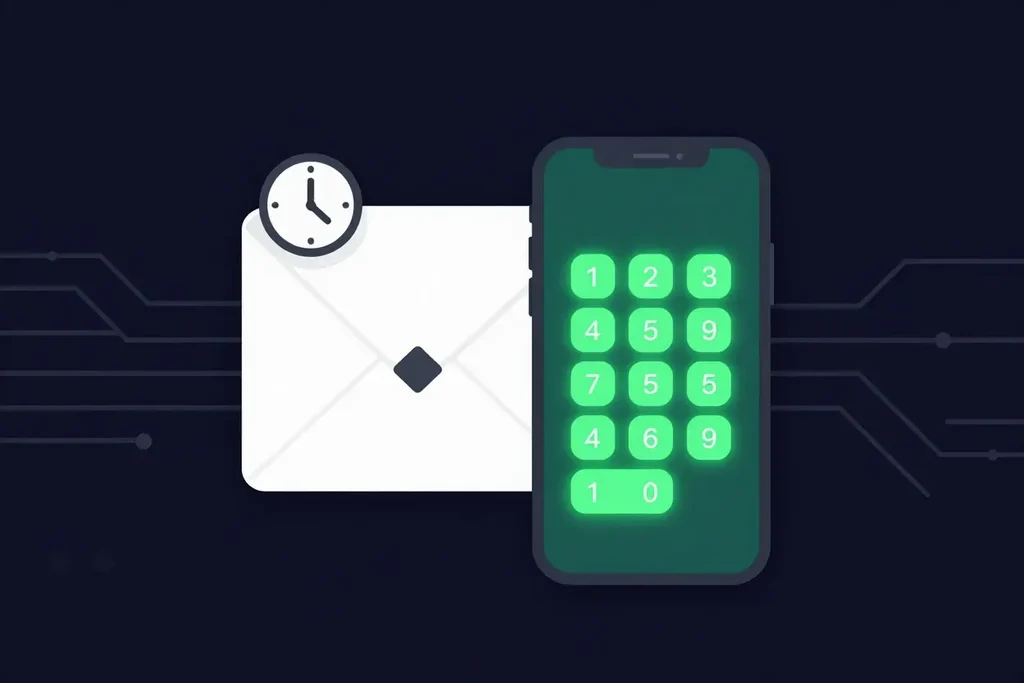
Here is how to use it on a computer, following Google’s instructions:
- Open Gmail and select Compose.
- At the bottom of the compose window, select Turn confidential mode on.
- Choose an expiry date from the drop-down.
- Choose the passcode option: SMS passcode (the recipient gets a code by text message) or No SMS passcode.
- Select Save, then finish and send your email.
If you change your mind, open the message in Sent and select Remove access. The recipient can no longer open it, even before the expiry date.
Is Gmail Confidential Mode Encrypted?
Gmail confidential mode is an access control, not an extra layer of encryption. Google’s help page describes expiry, passcodes, revoking access and blocking forwarding, but it does not describe additional encryption. In transit, the message is protected by the same TLS as any other Gmail message.
Google is also candid about the limits: “recipients can still take screenshots or photos of your emails,” and “recipients with malicious programs may still be able to copy or download your messages.” Confidential mode reduces accidental sharing. It does not stop a determined recipient.
How Do I Encrypt Email in Gmail With S/MIME?
You can encrypt email in Gmail with S/MIME only if you have an eligible Google Workspace account and your administrator has turned on hosted S/MIME. Google lists Frontline Plus, Enterprise Plus, and Education Fundamentals, Standard and Plus as the supported editions. Personal Gmail accounts cannot use it.
S/MIME encrypts the message with the recipient’s public key, so both people need S/MIME set up. According to Google Workspace Admin Help, you exchange keys by sending each other a digitally signed message first; Gmail then stores the key and can encrypt future messages to that person. Once keys are in place, messages show the green lock automatically.
If your recipient does not have S/MIME, the message cannot be sent with that enhanced encryption. That is why S/MIME tends to work well inside large organizations and poorly with clients who use a personal inbox.
What Is Gmail Client-Side Encryption?
Gmail client-side encryption (CSE) encrypts the message body and attachments in the browser, using keys your organization controls, before the data reaches Google’s servers. It is available only on Enterprise Plus, Education Plus, Education Standard and Frontline Plus, and must be set up by an administrator.
To use it, select Message security while composing and, under Additional encryption, select Turn on. Google notes that the subject line, timestamps and recipient list are not covered by this extra encryption.
On October 2, 2025, Google announced that Enterprise Plus customers with the Assured Controls add-on can send these encrypted messages to recipients on any email provider, who read them through a guest account. For most small businesses and personal users, though, CSE is not available at all. If you are on a personal Gmail account or a standard Workspace plan, TLS and confidential mode are what you have.
Which Gmail Security Option Should You Use?
The four options protect different things. This table puts them side by side.
| TLS (default) | Confidential mode | Hosted S/MIME | Client-side encryption | |
|---|---|---|---|---|
| Available on personal Gmail | Yes | Yes | No | No |
| Protects in transit | Yes, if recipient supports TLS | Yes (uses TLS) | Yes | Yes |
| Expiry and revoke | No | Yes | No | No |
| Blocks forwarding and printing | No | Yes (not screenshots) | No | No |
| Recipient setup | None | None, or SMS passcode | Needs S/MIME and key exchange | Admin setup; guest account for outside recipients on some plans |
If your team also uses Microsoft 365, our companion guide on how to encrypt email in Outlook covers the equivalent options there.
What If Your Attachment Is Too Large or Too Sensitive?
Gmail lets personal accounts attach up to 25 MB per email. If your files are larger, Gmail removes the attachment and inserts a Google Drive link instead, so the file’s protection then depends on the Drive sharing settings you choose, not on the email.
Google’s attachment size page notes that limits for work and school accounts are set by administrators. Either way, large scans, video and design files quickly hit the ceiling. Common workarounds each have a weakness:
- Zipping files: helps with size, but a password in the same email defeats the point. See how to create a zip file to send via email.
- Drive links: easy to share with “anyone with the link” by mistake, and access stays open until someone changes it.
- Splitting into several emails: more chances to send one to the wrong address.
For a wider look at the safer methods, read how to send documents securely online, and for the background on why this protection matters, why encryption is important.
What Is the Easiest Way to Send Sensitive Files From Gmail?
When the attachment is too big, the recipient is not on Workspace, or you want the file to stop being available after a set date, a secure transfer service is often easier than trying to lock down the email itself. This is where SureSend comes into the picture. SureSend is a Canadian secure file transfer service that sends files through a passphrase-protected link that expires on a date you choose. SureSend uses server-side encryption: files are protected with TLS in transit and AES-256 encryption at rest, with encryption keys managed by SureSend. Here is exactly how it works:
- Create a transfer. Sign in, add one or more recipient email addresses, upload your files, and choose an expiry date of up to 21 days.
- Set a passphrase. SureSend emails each recipient a secure link, but the passphrase is never included in that email. You share it separately, by phone or text.
- The recipient downloads. They open the link, enter the passphrase, and download the files. They do not need a SureSend account.
- Track and control it. Your dashboard shows when the transfer is retrieved. You can cancel it before it is downloaded, and it expires automatically.
After you send, SureSend reminds you to share the passphrase separately, and your dashboard shows when each transfer is retrieved.
| Gmail (personal) | SureSend | |
|---|---|---|
| Maximum size | 25 MB, then a Drive link | 2 GB per transfer (Pro) |
| Access control | Optional SMS passcode (confidential mode) | Passphrase you share separately, every time |
| Expiry | Confidential mode only; message body | Set by you, up to 21 days |
| Delivery status | None | Dashboard shows Retrieved, Expired or Cancelled |
| Recipient needs | An email address | The link and the passphrase; no account |
Send the Files Gmail Can’t
SureSend uses server-side encryption: TLS in transit and AES-256 encryption at rest, with keys managed by SureSend. Send up to 2 GB per transfer, protect it with a passphrase you share separately, set an expiry of up to 21 days, and see when it is retrieved. Your recipient needs no account. New subscribers get 30 days of Pro free, with no credit card required. Start sending securely for free.
What Is a Good Routine for Sending Secure Email in Gmail?
For everyday sensitive email from Gmail, this routine covers most situations:
- Check the lock icon before sending. Red means stop.
- For a short, sensitive message, turn on confidential mode with an SMS passcode and a short expiry.
- Never put a password in the same email as the protected file.
- For files over 25 MB, or anything you would not want sitting in an inbox for years, send a passphrase-protected transfer and share the passphrase by phone or text.
- Afterwards, check that the file was retrieved, and let the transfer expire.
Habits prevent more leaks than tools do. Our guide to document confidentiality covers the everyday practices, such as double-checking auto-completed addresses, that stop most mistakes.
Frequently Asked Questions
How do I send a secure email in Gmail?
Check that the recipient field shows a lock icon, which means TLS encryption. For extra control, turn on confidential mode at the bottom of the compose window to add an expiry date and passcode. Workspace users on eligible plans can also use S/MIME or client-side encryption.
Is Gmail encrypted?
Gmail encrypts messages in transit with TLS, as long as the recipient’s provider supports it. TLS does not stop anyone with access to either mailbox from reading them; stronger protection needs S/MIME or client-side encryption on an eligible Workspace plan.
Is Gmail confidential mode encrypted?
Confidential mode is an access control, not extra encryption. It adds an expiry date, an optional SMS passcode, and blocks forwarding and printing, while the message itself is protected by standard TLS.
Can I encrypt email with a personal Gmail account?
Only with TLS, which is automatic. S/MIME and client-side encryption require an eligible Google Workspace edition set up by an administrator.
How do I send a large file securely from Gmail?
Gmail attachments are limited to 25 MB for personal accounts, and bigger files become Drive links. A secure transfer service such as SureSend sends up to 2 GB per transfer, protected by a passphrase you share separately.
Can the recipient screenshot a confidential mode email?
Yes. Google states that recipients can still take screenshots or photos of confidential mode emails, so it limits accidental sharing rather than preventing deliberate copying.
Sources
This article draws on the following sources.
- Gmail Help. Check if your email is encrypted. support.google.com
- Gmail Help. Send messages and attachments confidentially. support.google.com
- Google Workspace Admin Help. Turn on hosted S/MIME for message encryption. support.google.com
- Gmail Help. Learn about Gmail client-side encryption. support.google.com
- Google Workspace Updates. Send Gmail encrypted emails to anyone (October 2, 2025). workspaceupdates.googleblog.com
- Gmail Help. Attachment size limits. support.google.com
- Canadian Centre for Cyber Security. Baseline cyber security controls for small and medium organizations. cyber.gc.ca
The Bottom Line
Knowing how to send a secure email in Gmail comes down to matching the tool to the risk: TLS for everyday mail, confidential mode when you want an expiry and a passcode, and S/MIME or client-side encryption if your Workspace plan includes them. The Canadian Centre for Cyber Security lists protecting sensitive information as a baseline control for small and medium organizations.
Check the lock. Then send large files the right way.