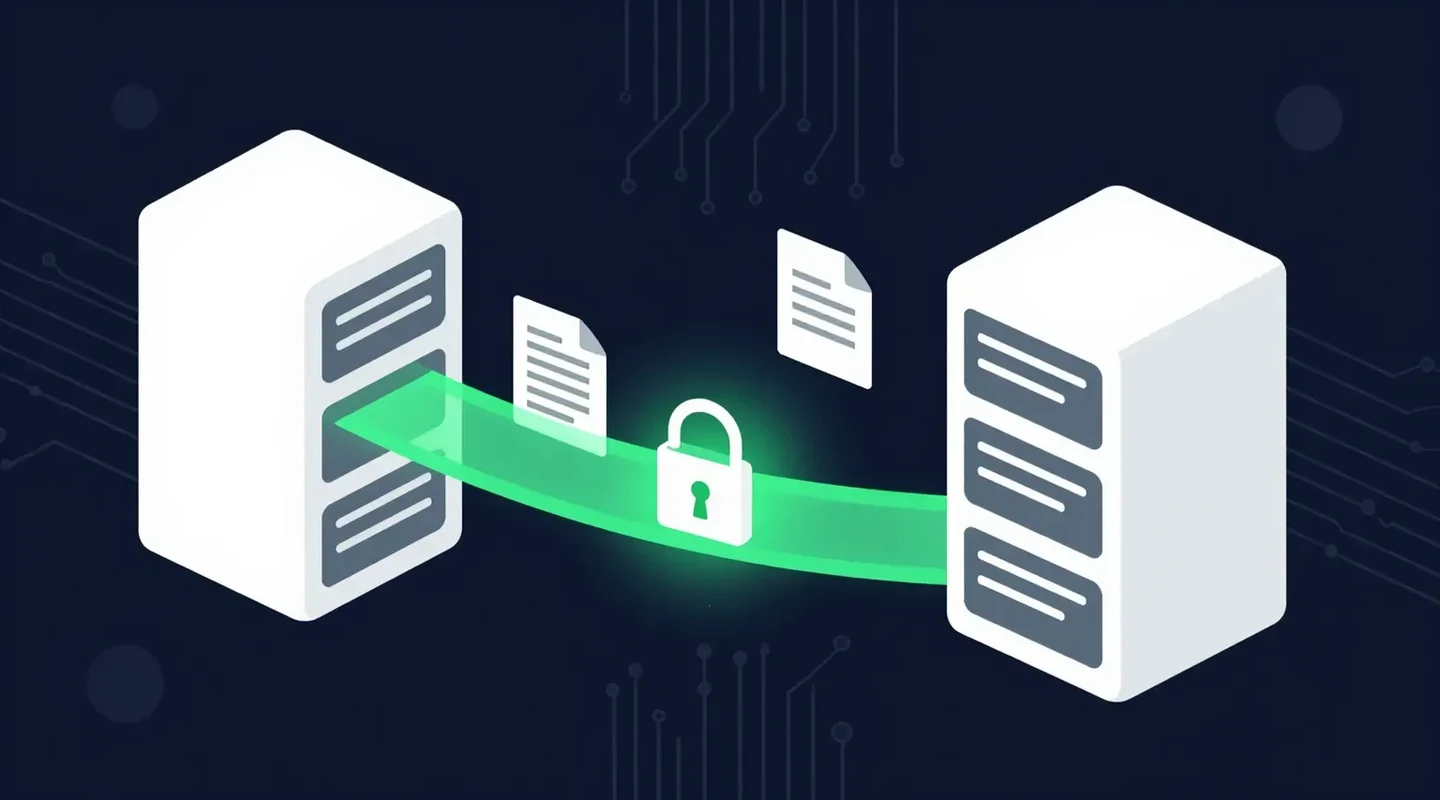
SFTP (SSH File Transfer Protocol) is a way to move files between computers over an encrypted SSH connection, usually on port 22. So if you are asking what is SFTP, the short answer is: FTP-style file transfer, with the login and the files protected in transit.
You have been asked for “the SFTP details.” Or a client’s IT team says they only accept files over SFTP. Or you are choosing between SFTP and FTPS and the two acronyms look almost identical.
This guide explains what SFTP is, how it works, which port it uses, and how it differs from FTPS and plain FTP. It also covers when a server-based protocol is the right tool, and when a simpler web-based transfer does the job with less setup.
Quick Summary
- SFTP is the SSH File Transfer Protocol. It runs inside an SSH connection, normally on port 22, and encrypts the login and the files.
- FTPS is the old FTP protocol with TLS added. It uses port 21 (explicit, via the AUTH TLS command) or port 990 (implicit).
- Plain FTP sends passwords and files unencrypted. RFC 2577 says standard FTP sends passwords in clear text.
- SFTP and FTPS are both secure when set up properly. SFTP is usually easier through firewalls because it uses a single connection.
- Both need a server, accounts and client software. For sending a file to someone once, a passphrase-protected web link is often simpler.
In This Guide
What Is SFTP?
SFTP, the SSH File Transfer Protocol, is a network protocol for uploading, downloading and managing files on a remote computer through an encrypted Secure Shell (SSH) session. Your username, password or key, commands and file contents all travel inside that encrypted channel, so someone watching the network cannot read them.
SFTP is not FTP with encryption bolted on. It is a separate protocol designed as part of the SSH suite. The IETF’s SSH File Transfer Protocol draft describes it as “the standard file transfer protocol for use with the SSH2 protocol.” That draft went through 13 versions, the last in July 2006, and was never published as a formal RFC, yet SFTP became the de facto standard anyway because it ships with OpenSSH.
Typical uses include:
- Automated data exchange between businesses, such as a payroll provider collecting files from an employer every night.
- Website and server administration, for example uploading files to a web host.
- Bank and vendor integrations that require files to land in a specific folder on a specific server.
- Backups copied from one server to another.
How Does SFTP Work?
SFTP works by first opening an SSH connection between a client and a server, verifying the server’s identity and authenticating the user, and then running file commands such as upload, download, list and delete inside that encrypted connection. Everything happens over one connection.
In practice, a session looks like this:
- The client connects to the server, normally on port 22.
- The server proves its identity with a host key. The first time you connect, your client asks you to confirm it.
- You authenticate with a password or, more commonly for automated jobs, an SSH key pair.
- You transfer files with commands like
putandget, or by dragging files in a graphical client.
The OpenSSH sftp manual sums it up: sftp is a file transfer program, similar to ftp, “which performs all operations over an encrypted ssh transport,” and it can use SSH features such as public key authentication.
You probably already have an SFTP client. According to Microsoft, OpenSSH, including the sftp command, is available on Windows 10 build 1809 and later and Windows Server 2019 and later as an optional feature. On a Mac, Apple’s Remote Login setting lets other computers reach your Mac “using SSH (Secure Shell Protocol) or SFTP (SSH File Transfer Protocol).” Graphical clients such as the free WinSCP support SFTP, FTP and FTPS on Windows.
What Port Does SFTP Use?
SFTP uses port 22 by default, because it runs over SSH and SSH servers listen on port 22. RFC 4253 states that the server “normally listens for connections on port 22,” a port registered with IANA for SSH. Administrators can move SSH to another port, in which case the SFTP client must be told the new number.
With the command-line client, that is the -P option, for example sftp -P 2222 user@server. For comparison, FTP uses port 21 for commands (and 20 for data in active mode), and implicit FTPS uses port 990, according to the IANA port registry. The table below lists them side by side.
SFTP vs FTPS vs FTP: What Is the Difference?
SFTP, FTPS and FTP are three different file transfer protocols. FTP is the long-standing standard, defined in its current form in 1985, and has no encryption. FTPS is FTP with TLS encryption added. SFTP is a separate protocol that runs over SSH. SFTP and FTPS are both secure; plain FTP is not.
| FTP | FTPS | SFTP | |
|---|---|---|---|
| Full name | File Transfer Protocol | FTP over TLS (FTP-SSL) | SSH File Transfer Protocol |
| Standard | RFC 959 (1985) | RFC 4217 (2005) | IETF draft, never a formal RFC |
| Encryption | None | TLS | SSH |
| Default port | 21 (commands), 20 (data) | 21 (explicit) or 990 (implicit) | 22 |
| Connections | Separate command and data connections | Separate command and data connections | One connection |
| Login | Username and password, sent in clear text | Username and password, or certificates | Password or SSH key |
| Firewall setup | Needs data ports opened | Harder: encrypted data ports | Easier: one port |
| Use today | Avoid for anything sensitive | Common in older enterprise systems | The usual choice for new setups |
Plain FTP: Why It Is No Longer Safe
FTP was published as RFC 959 in October 1985, when networks were small and trusted. The IETF’s own FTP Security Considerations (RFC 2577) states that “standard FTP sends passwords in clear text using the ‘PASS’ command” and that all data and control information “is sent across the network in unencrypted form.” Anyone on the path can capture both the login and the file.
FTPS: FTP With TLS Added
FTPS keeps the FTP commands but wraps them in TLS, the same encryption used by HTTPS websites. RFC 4217 (October 2005) defines explicit FTPS: the client connects on port 21 and sends the AUTH TLS command to switch the session to encryption. With the PROT P setting, the data connection is encrypted too. The older implicit mode starts TLS immediately on port 990, which IANA lists as “ftp protocol, control, over TLS/SSL.”
Because FTPS still opens separate data connections, often on a range of ports, firewalls cannot inspect the encrypted commands to know which ports to allow. That is the most common source of FTPS connection trouble.
SFTP: One Encrypted SSH Connection
SFTP avoids that problem by sending commands and files over one SSH connection on one port. It also supports key-based login, which is safer than passwords for automated jobs. The main thing it shares with FTPS is the need to run and maintain a server.
Is SFTP Secure?
Yes, SFTP is secure when the SSH server is kept up to date and configured properly. It encrypts credentials and files in transit and verifies the server’s identity with a host key. Weak passwords, old SSH versions and ignored host-key warnings are what undermine it.
The Canadian Centre for Cyber Security’s guidance on securely configuring network protocols says SSH servers and clients “should be configured to use SSH protocol version 2.0,” warns that “SSH protocol version 1.0 has serious vulnerabilities,” and recommends server-client mutual authentication. In practical terms:
- Use SSH keys for automated transfers instead of passwords stored in scripts.
- Give each partner their own account, restricted to their own folder.
- Never click through a changed host-key warning. It can mean you are talking to the wrong server.
- Remove accounts when a project or contract ends.
- Remember that SFTP protects files in transit. Once a file lands on the server, protecting it there is the server owner’s job.
For a wider look at what encryption does and does not protect, see why encryption is important.
When Should You Use SFTP, FTPS or a Web Link?
Use SFTP for regular, automated file exchanges between systems, such as nightly payroll or bank files. Use FTPS only when a partner’s system requires it. For sending documents to a person, such as a client or a colleague, a secure web link is usually faster, because the recipient needs no account, server or software.

| Situation | Best fit | Why |
|---|---|---|
| A nightly payroll or bank file between two systems | SFTP | Scriptable, key-based login, one port |
| A partner’s legacy system only accepts FTPS | FTPS | Compatibility with what they already run |
| Uploading files to your own web server | SFTP | Most hosts provide it alongside SSH |
| Sending a signed contract or tax return to a client | Secure web link | No server, account or client software for the recipient |
| Anything sensitive, over any protocol | Not plain FTP | Passwords and files travel unencrypted |
Setting up SFTP for a one-off send means creating an account on a server, sending the recipient a hostname, port, username and password or key, and explaining how to install a client. Most clients of an accountant or a law firm will simply call and ask for the file by email instead. That is how sensitive documents end up as attachments.
If you are weighing the options for people rather than systems, our guide on how to send documents securely online compares the main methods, and these WeTransfer alternatives cover web-based transfer services side by side.
What Is a Simpler Alternative to SFTP for Sending Files to People?
A secure web-based transfer service is the simpler alternative: you upload the file, and the recipient opens a protected link in a browser. There is no server to maintain and nothing for the recipient to install. This is where SureSend comes into the picture.
SureSend is a Canadian secure file transfer service that sends files through a passphrase-protected link that expires on a date you choose. SureSend uses server-side encryption: files are protected with TLS in transit and AES-256 encryption at rest, with encryption keys managed by SureSend. Here is exactly how it works:
- Create a transfer. Sign in, add one or more recipient email addresses, upload your files, and choose an expiry date of up to 21 days.
- Set a passphrase. SureSend emails each recipient a secure link, but the passphrase is never included in that email. You share it separately, by phone or text.
- The recipient downloads. They open the link, enter the passphrase, and download the files. They do not need a SureSend account.
- Track and control it. Your dashboard shows when the transfer is retrieved. You can cancel it before it is downloaded, and it expires automatically.
Each transfer allows one successful download. If the download is interrupted, for example because the tab was closed, the recipient can try again until one download completes; after that the link cannot be used again, and the transfer’s status updates to Retrieved.
| SFTP | SureSend | |
|---|---|---|
| What you need to run | An SSH server, accounts and folders | Nothing; sign in on the web |
| What the recipient needs | An account, a client app, host, port and credentials | A browser and the passphrase |
| Encryption | SSH in transit | TLS in transit, AES-256 at rest (server-side) |
| File size | Set by the server | Up to 2 GB per transfer (Pro) |
| Expiry | Files stay until someone deletes them | A date you choose, up to 21 days |
| Best for | Automated system-to-system exchange | Sending documents to people |
SureSend does not replace SFTP for automated integrations. It replaces the email attachment, and the SFTP account you would otherwise create for one client and forget about. Read more about SureSend as a secure file transfer service.
Send Files Without Setting Up a Server
SureSend uses server-side encryption: TLS in transit and AES-256 encryption at rest, with keys managed by SureSend. Send up to 2 GB per transfer, protect it with a passphrase you share separately, set an expiry of up to 21 days, and see when it is retrieved. Your recipient needs no account. New subscribers get 30 days of Pro free, with no credit card required. Start sending securely for free.
A Quick Workflow That Works
To pick the right method for any file transfer:
- If a partner’s system asks for SFTP or FTPS details, use what they ask for, with SSH keys or TLS certificates where possible.
- If you are choosing a protocol for a new system-to-system exchange, choose SFTP over FTPS.
- Retire any plain FTP you still use for business files.
- For sending documents to a person, use a passphrase-protected link and share the passphrase by phone or text.
- Set an expiry, and check that the transfer was retrieved.
If you usually send from Microsoft 365, our guide on how to encrypt email in Outlook covers the built-in options for smaller attachments.
Frequently Asked Questions
What is SFTP in simple terms?
SFTP is a way to copy files to and from another computer over an encrypted SSH connection. It works like FTP, but the login and the files are protected while they travel across the network.
What is the SFTP port?
SFTP uses port 22 by default, the same port as SSH, because it runs inside an SSH connection. A server administrator can change it, in which case you give the new port to your SFTP client, for example with the -P option.
Is SFTP the same as FTPS?
No. FTPS is the original FTP protocol with TLS encryption added and uses ports 21 or 990, while SFTP is a separate protocol that runs over SSH on port 22. Both encrypt files in transit.
Which is more secure, SFTP or FTPS?
Both are secure when configured correctly, since SFTP uses SSH and FTPS uses TLS. SFTP is usually simpler to secure and to run through firewalls because it uses a single connection on one port.
What is an SFTP server?
An SFTP server is a computer running SSH server software that accepts SFTP connections, checks users’ passwords or keys, and lets them upload and download files in the folders they are allowed to use.
Is port 115 SFTP?
Port 115 is registered with IANA for the Simple File Transfer Protocol, an old and unrelated protocol that shares the same abbreviation. The SSH File Transfer Protocol uses port 22.
Do I need SFTP to send a file to a client?
Usually not. SFTP needs a server, an account and client software, which suits automated system-to-system transfers. For sending documents to a person, a passphrase-protected web link that expires is simpler for both sides.
Sources
This article draws on the following sources.
- IETF. RFC 4253: The Secure Shell (SSH) Transport Layer Protocol. rfc-editor.org
- IETF Datatracker. SSH File Transfer Protocol (draft-ietf-secsh-filexfer). datatracker.ietf.org
- IETF. RFC 959: File Transfer Protocol (FTP). rfc-editor.org
- IETF. RFC 2577: FTP Security Considerations. rfc-editor.org
- IETF. RFC 4217: Securing FTP with TLS. rfc-editor.org
- IANA. Service Name and Transport Protocol Port Number Registry. iana.org
- OpenBSD manual pages. sftp(1): OpenSSH secure file transfer. man.openbsd.org
- Microsoft Learn. OpenSSH for Windows overview. learn.microsoft.com
- Apple Support. Allow a remote computer to access your Mac. support.apple.com
- WinSCP. WinSCP: free SFTP, FTP and FTPS client for Windows. winscp.net
- Canadian Centre for Cyber Security. Guidance on securely configuring network protocols (ITSP.40.062). cyber.gc.ca
The Bottom Line
What is SFTP? It is the SSH File Transfer Protocol: encrypted file transfer over a single SSH connection on port 22. It is the better choice than FTPS for new system-to-system transfers, and both are far safer than plain FTP, which sends passwords and files in the clear. For sending sensitive documents to people, a server is often more than you need.
Use SFTP for systems. For people, just SureSend it.