To password protect a PDF, open it in a tool that can encrypt PDFs, such as Adobe Acrobat Pro, Preview on a Mac, Microsoft Word or the free LibreOffice, and set a document open password. Anyone who opens the file then has to type that password first.
You have a PDF to send. A signed contract. A tax return. A scan of someone’s health card. It is going to leave your computer, and you do not control where it goes after that.
This guide shows how to password protect a PDF step by step on Windows and Mac, with paid and free options. It explains the difference between the two kinds of PDF password, how strong the password needs to be, and the one mistake that undoes all of it: sending the password in the same email as the file.
Quick Summary
- A document open password encrypts the PDF so nobody can read it without the password. A permissions password only restricts printing, editing and copying.
- Adobe Acrobat Pro: All tools > Protect a PDF > Encrypt with Password. Acrobat X and later compatibility uses 256-bit AES.
- Mac: Preview can do it for free, from File > Export > Permissions.
- Windows without Adobe: Microsoft Word (Save as PDF > Options) or the free LibreOffice can export a password-protected PDF.
- Never put the password in the same email as the PDF. Share it by phone or text, or send the file through a passphrase-protected link.
In This Guide
How to Password Protect a PDF: Which Method Fits?
How to password protect a PDF depends on what you already have. Adobe Acrobat Pro gives the most control, Mac users can use the built-in Preview app for free, and Windows users without Acrobat can export a protected PDF from Microsoft Word or from the free LibreOffice suite.
- You have Acrobat Pro: use Acrobat. It sets the encryption level and both kinds of password.
- You are on a Mac: use Preview. It is already installed.
- You are on Windows and the PDF started as a Word file: export it from Word with a password.
- You want a free desktop tool on any system: use LibreOffice.
- You only need it once and the file is not sensitive: Adobe’s free online tool works in a browser, but it means uploading the file to Adobe.
How Do I Password Protect a PDF in Adobe Acrobat?
In Adobe Acrobat Pro, select All tools, then Protect a PDF, then Encrypt with Password. Choose Require a password to open the document, type the password, confirm it, and save the PDF. The protection applies only after you save the file.
Here are the steps from Adobe’s help page:
- Open the PDF in Acrobat and select All tools > Protect a PDF.
- In the left panel, under Advanced options, select Encrypt with Password, then select Yes.
- Select Require a password to open the document and type the password in the Document Open Password field.
- Select OK, re-type the password to confirm, and review the security message.
- Save the PDF. The password takes effect when you save.
Choose the Right Encryption Level
Acrobat asks for a compatibility setting, and that setting decides the encryption. According to Adobe’s guide to securing PDFs, Acrobat X and later encrypts with 256-bit AES, Acrobat 7.0 and later uses 128-bit AES, and Acrobat 6.0 and later uses the older 128-bit RC4. Pick the newest setting your recipient can open. Adobe notes, for example, that Acrobat 7 cannot open a PDF encrypted for Acrobat X and later.
You can also choose Encrypt all document contents, which covers the file’s metadata too, so details such as the title and author are not readable without the password.
Can You Password Protect a PDF in Adobe Reader for Free?
Adobe’s help pages describe password protection as an Acrobat Pro feature, not part of the free Acrobat Reader. If you only have Reader, Adobe offers a free online tool that adds a password in the browser: you upload the PDF, type a password twice, select Set password, and download the protected copy.
The online tool is quick, but the file travels to Adobe’s servers to be processed. For a client’s tax return or a medical record, a desktop method that keeps the file on your own computer is the more careful choice. Those are covered next.
How Do I Password Protect a PDF on a Mac?
To password protect a PDF on a Mac, open it in Preview, choose File, then Export, and click Permissions. Select Require Password To Open Document, enter the password twice, add an owner password, click Apply, then Save. Preview is built into macOS, so there is nothing to buy or install.
The full steps, from Apple’s Preview User Guide:
- Open the PDF in Preview.
- Choose File > Export. To keep the original unprotected, give the exported copy a new name.
- Click Permissions.
- Select Require Password To Open Document and enter the password twice.
- Under the permission options, choose whether people can print or make changes, and enter an Owner Password.
- Click Apply, then Save.
Apple notes that the owner password can be the same as the open password or different. To change the settings later, open the PDF and choose File > Edit Permissions.
How Do I Password Protect a PDF on Windows Without Adobe?
Windows has no built-in setting for PDF passwords, but two common programs can do it. Microsoft Word can export any document as a password-protected PDF, and the free LibreOffice suite can export a PDF with both an open password and a permissions password.
Using Microsoft Word
This works when your PDF starts life as a Word document, such as a letter, invoice or report. In the Word desktop app:
- Choose File > Save a Copy (or Save As for an unsaved file), select Browse, and choose PDF from the file type list.
- Select More Options > Options.
- Tick Encrypt the document with a password and select OK.
- Type and re-enter the password in the Encrypt PDF Document box, then save.
Microsoft’s support page describes the option simply: select it “to restrict access so only people with the password can open the PDF.”
Using LibreOffice (Free)
LibreOffice is free and runs on Windows, Mac and Linux. Open or create the document, then choose File > Export As > Export as PDF, open the Security tab, and select Set Passwords. Enter an open password to stop anyone reading the file, and optionally a permission password to limit printing and editing.
Open Password vs Permissions Password: What Is the Difference?
A document open password (also called a user password) stops anyone from opening the PDF without it. A permissions password (also called an owner or master password) lets anyone open and read the PDF, but restricts printing, editing and copying. Only the open password keeps the content private.
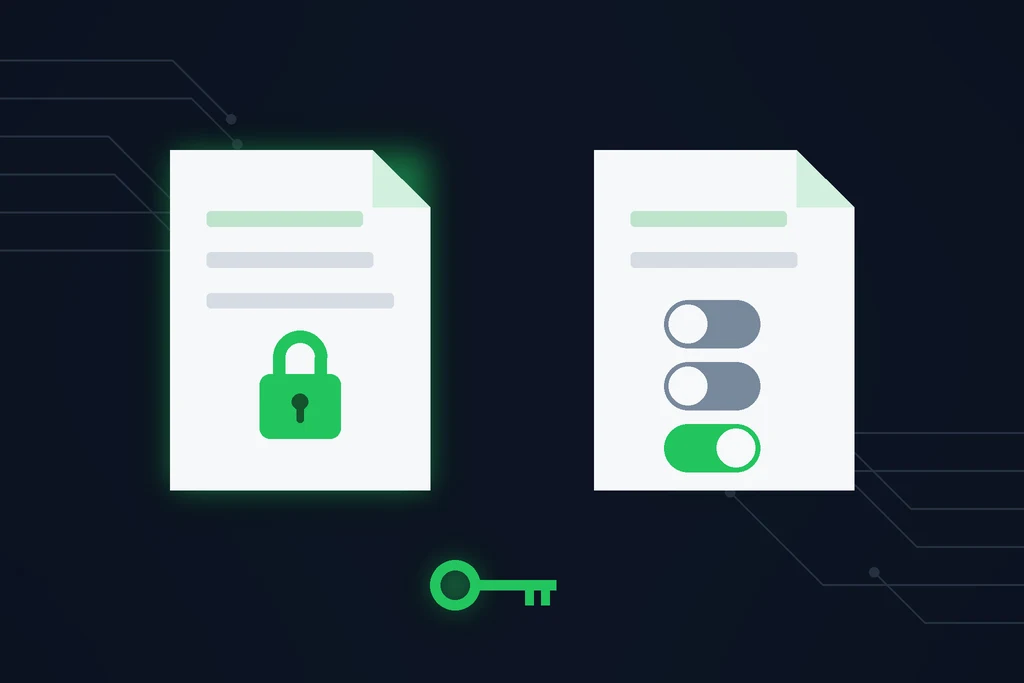
Permissions passwords are weaker than they look. Adobe states that all Adobe products enforce them, “however, if third-party products do not support these settings, document recipients are able to bypass some or all of the restrictions you set.” LibreOffice’s help makes the same point: the restrictions are “observed only by PDF readers compliant with the version 1.5 of the format.”
Adobe even documents how the owner of a PDF can regain editing access without the permissions password, by printing it to a new PDF. So if the goal is confidentiality, set an open password. Use a permissions password on top of it only to discourage casual changes.
PDF Password Methods Compared
The four desktop methods and the online tool side by side:
| Method | Cost | Open password | Permissions password | File stays on your computer |
|---|---|---|---|---|
| Adobe Acrobat Pro | Paid subscription | Yes (up to 256-bit AES) | Yes | Yes |
| Preview (Mac) | Free, built in | Yes | Yes (owner password) | Yes |
| Microsoft Word | Included with Office | Yes | No | Yes |
| LibreOffice | Free | Yes | Yes | Yes |
| Adobe online tool | Free | Yes | No | No, uploaded to Adobe |
How Strong Should a PDF Password Be?
A PDF password should be a passphrase of at least four words and 15 characters, or a random password of at least 12 characters, following the Canadian Centre for Cyber Security. Short passwords are the easiest to crack by brute force, and someone holding a copy of the file can keep guessing with no lockout.
The Canadian Centre for Cyber Security recommends passphrases because they are “longer and easier to remember,” and suggests building one from unrelated words, such as “Closet lamp Bathroom Mug”. Its other advice applies directly to PDFs: use a different password for each file or account, and never reuse one that appeared in a known data breach.
Keep a record of it. Adobe warns: “If you forget a password, you cannot recover it from the PDF.” It suggests keeping a backup copy that is not password-protected, stored somewhere safe.
How Do You Send a Password-Protected PDF Safely?
Send the password-protected PDF and its password through two different channels. Email the PDF, then share the password by phone call or text message. If both travel in the same email, anyone who gets into that inbox, or receives it by mistake, has the file and the key together.
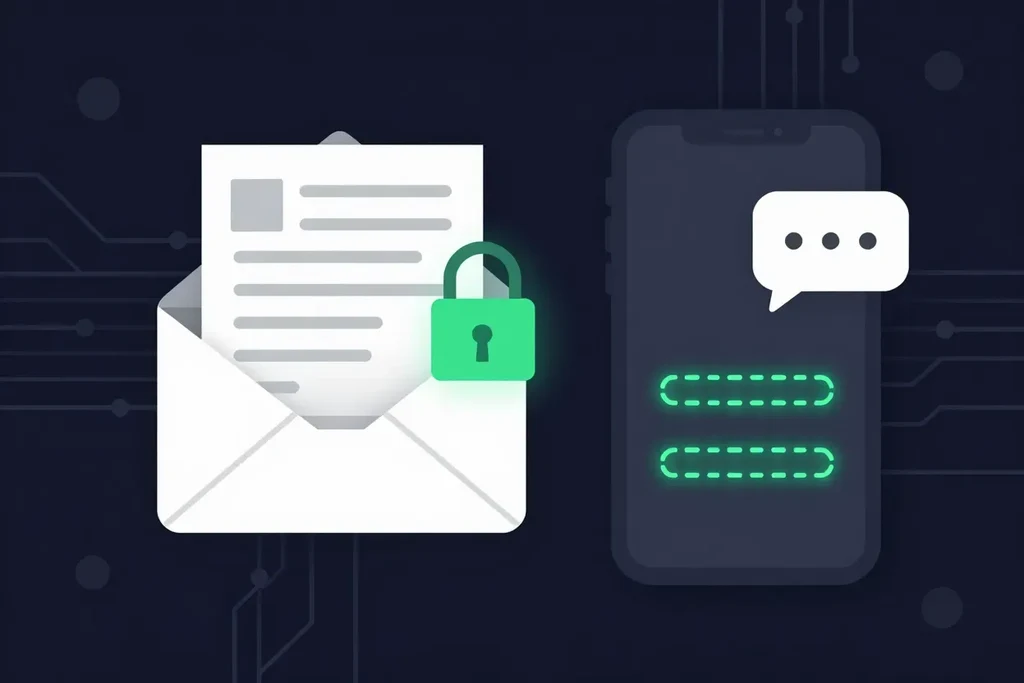
Adobe’s own password best practices say the same: share passwords “through secure communication methods to prevent interception or misuse,” and avoid sharing them by email. A few other habits help:
- Check the address twice. Auto-complete picking the wrong “Chris” is an ordinary, very common way files go astray.
- Do not reuse one password for every client. Once someone knows it, every file you ever sent them is open.
- Watch the size. Gmail caps attachments at 25 MB for personal accounts, and scanned PDFs grow quickly.
If you send from Gmail, our guide on how to send a secure email in Gmail explains what its confidential mode does and does not protect. On Microsoft 365, see how to encrypt email in Outlook. For a comparison of the wider options, read how to send documents securely online.
A Simpler Way to Send Sensitive PDFs
A PDF password protects the file, but you still have to deliver the file and the password, and the email copy stays in both mailboxes for years. This is where SureSend comes into the picture. SureSend is a Canadian secure file transfer service that sends files through a passphrase-protected link that expires on a date you choose. SureSend uses server-side encryption: files are protected with TLS in transit and AES-256 encryption at rest, with encryption keys managed by SureSend. Here is exactly how it works:
- Create a transfer. Sign in, add one or more recipient email addresses, upload your files, and choose an expiry date of up to 21 days.
- Set a passphrase. SureSend emails each recipient a secure link, but the passphrase is never included in that email. You share it separately, by phone or text.
- The recipient downloads. They open the link, enter the passphrase, and download the files. They do not need a SureSend account.
- Track and control it. Your dashboard shows when the transfer is retrieved. You can cancel it before it is downloaded, and it expires automatically.
Once you send, SureSend reminds you to share the passphrase separately, the same rule that applies to a PDF password.
Each transfer allows one successful download. If the download is interrupted, for example because the tab was closed, the recipient can try again until one download completes; after that the link cannot be used again, and the transfer’s status updates to Retrieved.
| Password-protected PDF by email | SureSend | |
|---|---|---|
| Who sets the password | You, per file | You, per transfer (passphrase) |
| How the password travels | Up to you; often wrongly in the same email | Never in the email; you share it separately |
| File size | Limited by the email provider | Up to 2 GB per transfer (Pro) |
| Expiry | None; copies stay in inboxes | A date you choose, up to 21 days |
| Delivery status | None | Retrieved, Expired or Cancelled on your dashboard |
| Works for other file types | PDF only | Any file |
Send PDFs Without the Inbox Copy
SureSend uses server-side encryption: TLS in transit and AES-256 encryption at rest, with keys managed by SureSend. Send up to 2 GB per transfer, protect it with a passphrase you share separately, set an expiry of up to 21 days, and see when it is retrieved. Your recipient needs no account. New subscribers get 30 days of Pro free, with no credit card required. Start sending securely for free.
A Quick Workflow That Works
For sending a sensitive PDF, this routine covers most situations:
- Set a document open password, not only a permissions password.
- Use a passphrase of four or more words, different for each client.
- Keep an unprotected original somewhere safe, because a lost PDF password cannot be recovered.
- Send the file, then share the password by phone or text. Never in the same email.
- For large files, many files, or anything you do not want sitting in an inbox, use a passphrase-protected transfer with an expiry date.
Passwords are one layer. Our guide to document confidentiality covers the everyday habits that prevent most leaks, and why encryption is important explains what the encryption underneath is actually doing.
Frequently Asked Questions
How do I password protect a PDF for free?
On a Mac, use Preview: File, Export, Permissions, then Require Password To Open Document. On Windows, use the free LibreOffice suite (Export as PDF, Security tab, Set Passwords), or Microsoft Word’s Save as PDF option if you already have Office.
Can you password protect a PDF in Adobe Reader?
Adobe’s help pages list password protection as an Acrobat Pro feature, not part of the free Acrobat Reader. Reader users can use Adobe’s free online tool, which requires uploading the PDF to Adobe.
Is a password-protected PDF encrypted?
A PDF with a document open password is encrypted. In Adobe Acrobat, the Acrobat X and later compatibility setting uses 256-bit AES encryption, while older settings use 128-bit AES or RC4.
How do I remove a password from a PDF?
If you know the password, open the PDF in the tool you used and turn the security off. In Adobe Acrobat, go to All tools, Protect a PDF, Set security properties, then Change Settings and deselect the password options before saving.
What if I forget the password to my PDF?
Adobe states that a forgotten password cannot be recovered from the PDF. Keep an unprotected original stored safely, or record the password in a password manager.
Should I email the password with the PDF?
No. Send the password by a different channel, such as a phone call or text message, so that one intercepted or misdirected email does not expose both the file and its password.
Sources
This article draws on the following sources.
- Adobe Acrobat Help. Add passwords to PDFs. helpx.adobe.com
- Adobe Acrobat Help. Securing PDFs with passwords. helpx.adobe.com
- Adobe Acrobat Help. Password security overview in Adobe Acrobat. helpx.adobe.com
- Adobe Acrobat Help. Regain editing access to PDFs. helpx.adobe.com
- Adobe Acrobat Help. Remove passwords from PDFs. helpx.adobe.com
- Adobe. Password protect a PDF (online tool). adobe.com
- Apple Support. Password-protect a PDF in Preview on Mac. support.apple.com
- Microsoft Support. Save or convert to PDF or XPS in Office desktop apps. support.microsoft.com
- LibreOffice Help. PDF Export Security. help.libreoffice.org
- Canadian Centre for Cyber Security. Best practices for passphrases and passwords (ITSAP.30.032). cyber.gc.ca
- Gmail Help. Attachment size limits. support.google.com
The Bottom Line
Knowing how to password protect a PDF takes a minute to learn: Acrobat Pro, Preview, Word and LibreOffice can all set a document open password, and that open password, not the permissions password, is what keeps the content private. The weak point is rarely the encryption. It is the password travelling in the same email as the file.
Lock the PDF. Then send the key separately.