

To send large files in Gmail, upload the file to Google Drive and send a Drive link instead of an attachment. Gmail does this for you: when attachments add up to more than 25 MB in a personal account, it removes them and puts a Google Drive link in the email.
You have a 90 MB folder of scanned receipts for your accountant. Or a set of site photos. You attach them in Gmail, and the file turns into a link you did not ask for.
This guide explains the Gmail attachment size limit, how to send a large file as a Drive link on a computer and on a phone, who can open that link, and what to do when the file is also confidential.
Quick Summary
- The Gmail attachment size limit is 25 MB for personal accounts. In Google Workspace, it is 25 MB for most editions and up to 50 MB in Enterprise Plus on the web.
- Over the limit, Gmail replaces the attachment with a Google Drive link automatically.
- Google Drive stores files up to 5 TB, but the file counts toward your Google storage (15 GB on a free account).
- Check the link's sharing setting before you send. With "Anyone with the link", people the email is forwarded to get the same access.
- For confidential files, use a link protected by a passphrase you share separately, with an expiry date.
What Is the Gmail Attachment Size Limit?
The Gmail attachment size limit is 25 MB for personal Gmail accounts, counting all attachments in the email together. For work and school accounts, the Google Workspace administrator sets the limit: Google lists 25 MB for Business, Education and Enterprise Standard, and up to 50 MB for Enterprise Plus on the web (as of October 2026).
| Account | Attachment limit Google publishes | Source |
|---|---|---|
| Personal Gmail (@gmail.com) | 25 MB | Send attachments with your Gmail message |
| Google Workspace Business | 25 MB | Gmail sending limits in Google Workspace |
| Google Workspace Education | 25 MB | Gmail sending limits in Google Workspace |
| Google Workspace Enterprise Standard | 25 MB | Gmail sending limits in Google Workspace |
| Google Workspace Enterprise Plus | Up to 50 MB, web version of Gmail only | Gmail sending limits in Google Workspace |
Figures as published by Google and checked on October 27, 2026. Google's Workspace page says these are "the limits on the total size of the message content and attachments before encoding." Encoding makes an email larger in transit: Google's Workspace receiving limits page says it "adds about a 37% increase." Treat 25 MB as the ceiling, not the target.
What Happens When a File Is Too Large for Gmail?
When your attachments add up to more than the limit, Gmail does not bounce the email. Google's Gmail help page says Gmail "automatically removes the attachment and adds it as a Google Drive link in the email." The file is uploaded to your Drive, and your recipient opens it from the link.
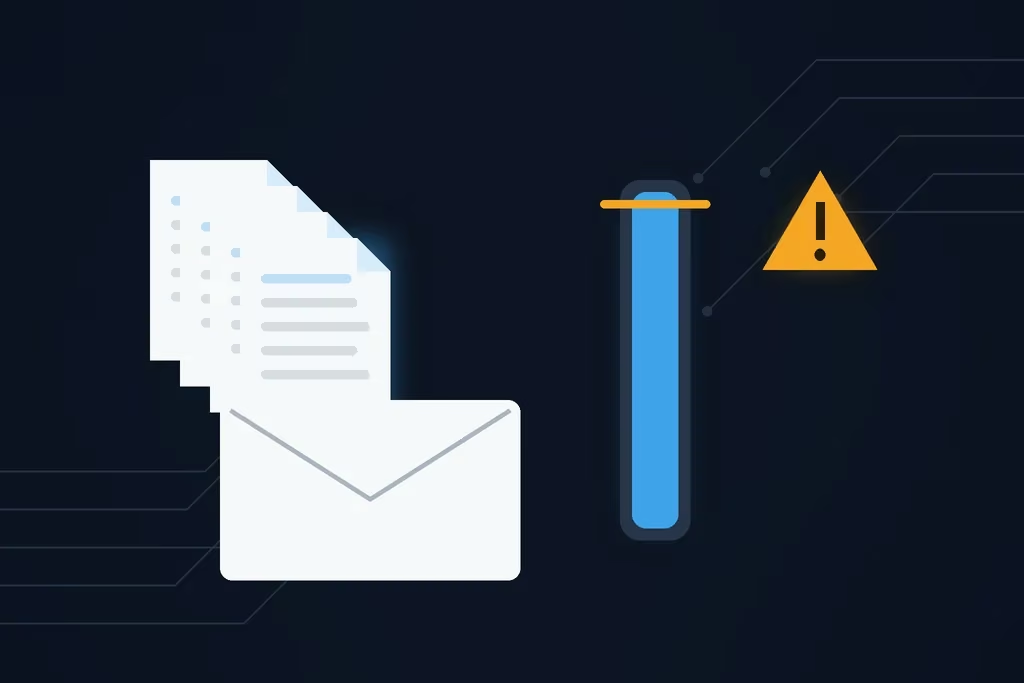
That is convenient, but it changes three things you should know about:
- The file now lives in your Drive. Google says attachments and Drive files share one storage quota across Gmail, Drive and Photos. A free Google Account includes up to 15 GB.
- Access depends on the sharing setting. Gmail checks whether your recipients can open the file and asks you to change the sharing settings if they cannot.
- The link outlives the email. Unlike an attachment, the file stays in Drive, reachable from the link, until you change its sharing or delete it.
Some files will not attach at all, whatever their size. Gmail blocks executable files such as .exe, including inside .zip archives, and "password-protected archives with archived content." A password-protected zip file is therefore not a way around the limit in Gmail.
How to Send Large Files in Gmail With Google Drive
To send large files in Gmail on a computer, upload the file to Google Drive first, then click Compose, choose Insert files using Drive, select the file, and pick Drive link. Gmail inserts a link instead of a copy, and your recipient opens the file in Drive. Google Drive stores files up to 5 TB, so size is rarely the problem.
On a Computer
- Go to drive.google.com, click New, then File upload or Folder upload, and choose the file.
- In Gmail, click Compose.
- At the bottom of the message, click Insert files using Drive and select the file.
- At the bottom of the page, choose Drive link (or Attachment, which works only for files not created in Google Docs, Sheets, Slides or Forms).
- Click Insert. If your recipients do not have access yet, Gmail asks you to change the sharing settings before it sends.
You can also attach the file the usual way with the paperclip. If it pushes the email over 25 MB, Gmail uploads it to Drive and adds the link for you.
On an Android Phone or Tablet
Open the Gmail app, tap Compose, then tap Attach at the top right and choose Drive. Pick the file from your Drive. If the file is only on your phone, upload it with the Google Drive app first.
On an iPhone or iPad
Open the Gmail app, tap Compose, then Attach, and choose Google Drive from the menu. As on Android, Google's attachment guide notes that an attachment over the limit is replaced with a Drive link automatically.
Using Outlook as well? Our guide on how to send large files through Outlook covers the same problem with OneDrive.
Can You Send Large Files in Gmail Without Google Drive?
Yes, if you can make the file small enough. Compress documents into a .zip file, split a big folder across several emails, or reduce the resolution of photos and video. Each email must stay under 25 MB in total. If it still does not fit, use a link from Drive or a file transfer service.
Our step-by-step guide on how to create a zip file to send by email covers Windows, Mac and phones, and our guide to compressing a video file helps with large recordings. Remember that a password-protected zip file is blocked by Gmail, so zipping helps with size, not with confidentiality.
Attachment, Drive Link or Secure Transfer: Which Should You Use?
Use a normal Gmail attachment for small, non-sensitive files, a Google Drive link for large files you share with colleagues or regular contacts, and a secure transfer with a passphrase for large files that contain personal, financial or legal information.
| Gmail attachment | Google Drive link | SureSend transfer | |
|---|---|---|---|
| Size | 25 MB (personal accounts) | Files up to 5 TB in Drive; counts toward your storage | Up to 2 GB per transfer (Pro) |
| Recipient needs | Nothing | A Google Account, unless the link is set to "Anyone with the link" | The link and the passphrase; no account |
| Who can open it | Anyone who gets the email | Depends on the sharing setting; forwarded copies get the same access | Only someone with the passphrase |
| Expiry | None; the copy stays in inboxes | Optional for work and school accounts | Always, on a date you set, up to 21 days |
For a wider comparison of file-sending services, see WeTransfer vs Dropbox Transfer and our list of WeTransfer alternatives.
Is It Safe to Send Large Files as a Google Drive Link?
A Google Drive link is safe when its sharing setting matches the file. The risk is in the setting: Google says anyone on the internet who has an "Anyone with the link" link can open the file without signing in, and if the email is forwarded, the new people get the same access as your original recipients.
- Keep the file restricted where you can. Share it only with the recipients' email addresses. Google notes that recipients without a Google Account cannot open a private file, so check this with them first.
- Set view-only access. With "Anyone with the link", you choose whether people can view, comment or edit. For a client, choose view.
- Add an expiry date if you have a work or school account. Google Drive's sharing guide says you can set an expiration date within one year; this is available for work and school accounts.
- Stop sharing when the job is done. Change the link back to restricted or delete the file once the recipient has it.
Canada's private-sector privacy law, PIPEDA, says personal information "shall be protected by security safeguards appropriate to the sensitivity of the information." Our guides on whether email is secure and how to send a secure email in Gmail explain what Gmail protects and what it does not.
A Simpler Way to Send Large, Sensitive Files
This is where SureSend comes into the picture. SureSend is a Canadian secure file transfer service that sends files through a passphrase-protected link that expires on a date you choose. SureSend encrypts every file while it's sent and while it's stored (TLS in transit, AES-256 at rest). It is built for files that are too large for a Gmail attachment and too sensitive for an open Drive link: tax records, legal files, medical reports, payroll and client scans.
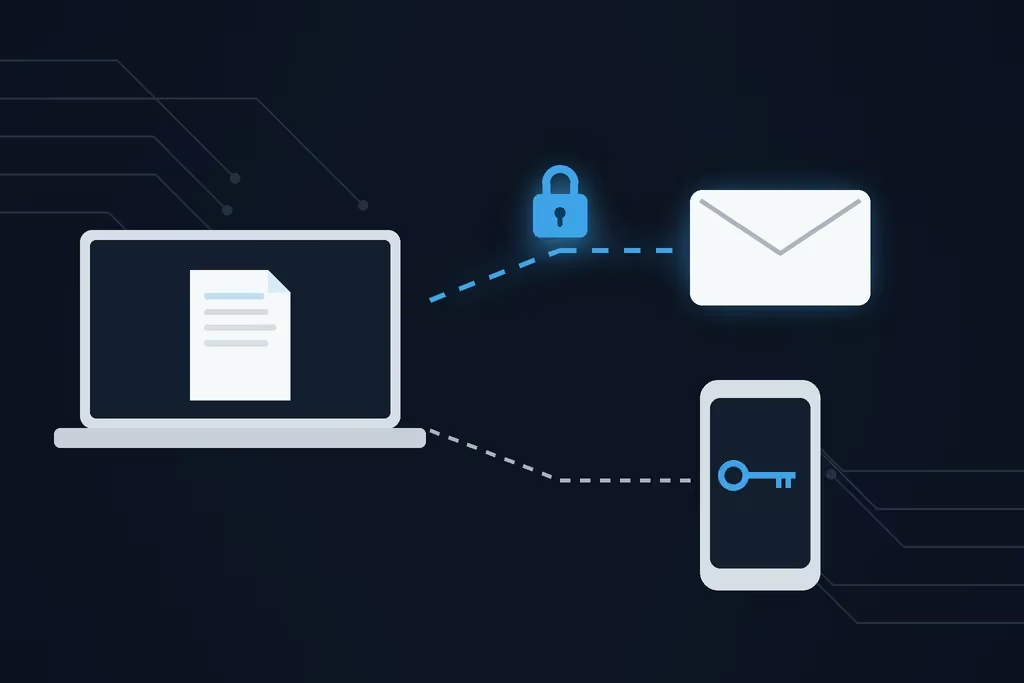
Here is exactly how it works:
- Create a transfer. Sign in, add one or more recipient email addresses, upload your files, and choose an expiry date of up to 21 days.
- Set a passphrase. SureSend emails each recipient a secure link, but the passphrase is never included in that email. You share it separately, by phone or text.
- The recipient downloads. They open the link, enter the passphrase, and download the files. They do not need a SureSend account.
- Track and control it. Your dashboard shows when the transfer is retrieved. You can cancel it before it is downloaded, and it expires automatically.
Each transfer allows one successful download. If the download is interrupted, the recipient can try again until one download completes; after that the link cannot be used again, and the transfer's status updates to Retrieved.
Your dashboard shows every transfer's status, so you know when a client has retrieved the file and which links have expired or been cancelled.
Your recipient needs no Google Account and no SureSend account. You can start on the free Starter plan. Pro is $7 CAD/month plus applicable taxes, with transfers up to 2 GB. SureSend doesn't keep your files forever; they're removed when the transfer expires. A secure transfer tool is one safeguard within your own privacy practices, not a compliance solution on its own.
Send Files Too Large for Gmail
SureSend encrypts every file while it's sent and while it's stored: TLS in transit and AES-256 encryption at rest. Send up to 2 GB per transfer, protect it with a passphrase you share separately, set an expiry of up to 21 days, and see when it is retrieved. Your recipient needs no account. New subscribers get 30 days of Pro free, with no credit card required. Start sending securely for free.
A Quick Workflow That Works
Use this order every time a file is too big for Gmail:
- Check the size. If all attachments together are well under 25 MB, attach them as usual.
- If it is a folder of documents, try zipping it first, without a password.
- Still too large and not sensitive? Insert it from Google Drive as a Drive link, view-only.
- Large and confidential? Send it through a secure transfer with an expiry date.
- Share the passphrase by phone or text, never in the same email.
- Check that the recipient has retrieved it, then let the link expire.
If you can send an email, you can SureSend a file.
Frequently Asked Questions
What is the Gmail attachment size limit?
The Gmail attachment size limit is 25 MB for personal accounts, for all attachments in one email together. In Google Workspace, Google lists 25 MB for most editions and up to 50 MB for Enterprise Plus on the web.
How do I send a file larger than 25 MB in Gmail?
Upload it to Google Drive, then in Gmail click Compose, Insert files using Drive, select the file and choose Drive link. If you attach it the usual way, Gmail replaces it with a Drive link automatically.
Can I increase the Gmail attachment size limit?
Google lists 25 MB as the limit for personal Gmail accounts. In Google Workspace, the administrator sets the attachment sending limits, so ask your IT administrator. For anything larger, send a Drive link.
Does the recipient need a Google Account to open a Drive link?
Only if the file is restricted. Google says that with the "Anyone with the link" setting, recipients don't need a Google Account to see the file. With a private file, recipients without a Google Account cannot open it.
Why can't I attach a zip file in Gmail?
Gmail blocks archives that contain blocked file types, such as .exe files, and password-protected archives with archived content. Remove the blocked files or send the archive through Google Drive or a file transfer service.
How does SureSend protect files?
SureSend encrypts files in transit (TLS) and at rest (AES-256), and SureSend manages the encryption keys. The passphrase is never included in the email with the link.
Do recipients need an account to download a SureSend file?
No. Recipients open the link from the email, enter the passphrase you shared separately, and download the file. They do not need to sign up or install anything.
Sources
This article draws on the following sources. Limits were checked on October 27, 2026. Google changes them from time to time, so confirm them on each page.
- Google, Gmail Help. Send attachments with your Gmail message. support.google.com
- Google, Gmail Help. Send Google Drive attachments in Gmail. support.google.com
- Google Workspace Admin Help. Gmail sending limits in Google Workspace. support.google.com
- Google Workspace Admin Help. Gmail receiving limits in Google Workspace. support.google.com
- Google, Gmail Help. File types blocked in Gmail. support.google.com
- Google, Google Drive Help. Files you can store in Google Drive. support.google.com
- Google, Google Drive Help. Share and manage access to files and folders in Google Drive. support.google.com
- Google, Google One Help. How your Google storage works. support.google.com
- Government of Canada, Justice Laws. Personal Information Protection and Electronic Documents Act, Schedule 1, Principle 4.7 (Safeguards). laws-lois.justice.gc.ca
The Bottom Line
Knowing how to send large files in Gmail comes down to one habit: above 25 MB, send a link, not the file. Gmail even does it for you. Google Drive handles everyday large files well when you check who the link works for and remove access afterwards.
For files that are both large and confidential, add a passphrase and an expiry date. Then just SureSend it.