
To password protect a zip file on Windows, install the free 7-Zip app, right-click your files, choose 7-Zip and then Add to archive, set the format to zip, type a password and pick AES-256 as the encryption method. On a Mac, use the zip command in Terminal or an encrypted disk image in Disk Utility.
You have a folder to send. Scanned tax slips. A client's contracts. Payroll exports. Zipping turns them into one tidy file. A password on that file is what keeps the contents private if it lands in the wrong inbox.
This guide shows how to password protect a zip file step by step on Windows and Mac, why the encryption method you choose matters more than the password box, and the mistake that undoes all of it: sending the password in the same email as the file.
Quick Summary
- Windows cannot add a password to a zip file on its own. Microsoft points you to apps such as 7-Zip or WinRAR.
- 7-Zip (free): Add to archive, format zip or 7z, enter a password, and choose AES-256, not ZipCrypto.
- Mac:
zip -erin Terminal adds a password, but with the older, weaker zip encryption. Disk Utility's encrypted disk image is stronger. - Use a long passphrase. Anyone holding a copy of the zip can keep guessing offline.
- Never send the password in the same email as the zip. Share it by phone or text.
Can You Password Protect a Zip File in Windows Without Software?
No. Windows can create and open zip files, but it cannot add a password to them. Microsoft's support page says Windows 11, version 24H2 does not support operations on encrypted archive files and suggests non-Microsoft applications such as 7-Zip or WinRAR to create them.
The built-in option, right-clicking a file and choosing Send to > Compressed (zipped) folder, only compresses. Microsoft's page also warns that encrypted files you add to a zipped folder will be unencrypted when they are unzipped, so zipping does not keep Windows file encryption either. If you need the zip itself locked, you need an archiver that supports passwords.
How Do I Password Protect a Zip File on Windows With 7-Zip?
To password protect a zip file with 7-Zip, select your files, right-click, choose 7-Zip and then Add to archive. Set the archive format to zip, type and confirm a password, set the encryption method to AES-256, and select OK. 7-Zip then creates the password-protected archive.
7-Zip is free software with open source, and its home page lists "strong AES-256 encryption in 7z and ZIP formats" among its features. You do not need to register or pay for it, including at work. The steps:
- Download and install 7-Zip from its official site, 7-zip.org.
- Select the files or folder you want to send, then right-click. On Windows 11 you may need to select Show more options first.
- Choose 7-Zip > Add to archive.
- Set Archive format to zip (or 7z, see below).
- Under Encryption, type the password in Enter password and again in Reenter password.
- Set Encryption method to AES-256.
- Select OK.
Zip or 7z: Which Format Should You Pick?
According to 7-Zip's documentation, the 7z format always uses AES-256, and it offers Encrypt file names, which hides the names of the files inside as well as their contents. Choose zip when the recipient may not have 7-Zip; choose 7z when even the file names are sensitive, such as a file called "Smith divorce settlement.pdf".
ZipCrypto vs AES-256: Which Encryption Method Should You Use?
Use AES-256. ZipCrypto is the older zip encryption that most zip tools can open, but it is weak. AES-256 provides stronger encryption. The trade-off is compatibility: 7-Zip's documentation says AES-256 is supported only by 7-Zip, WinZip and some other zip archivers, so your recipient may need one of them.
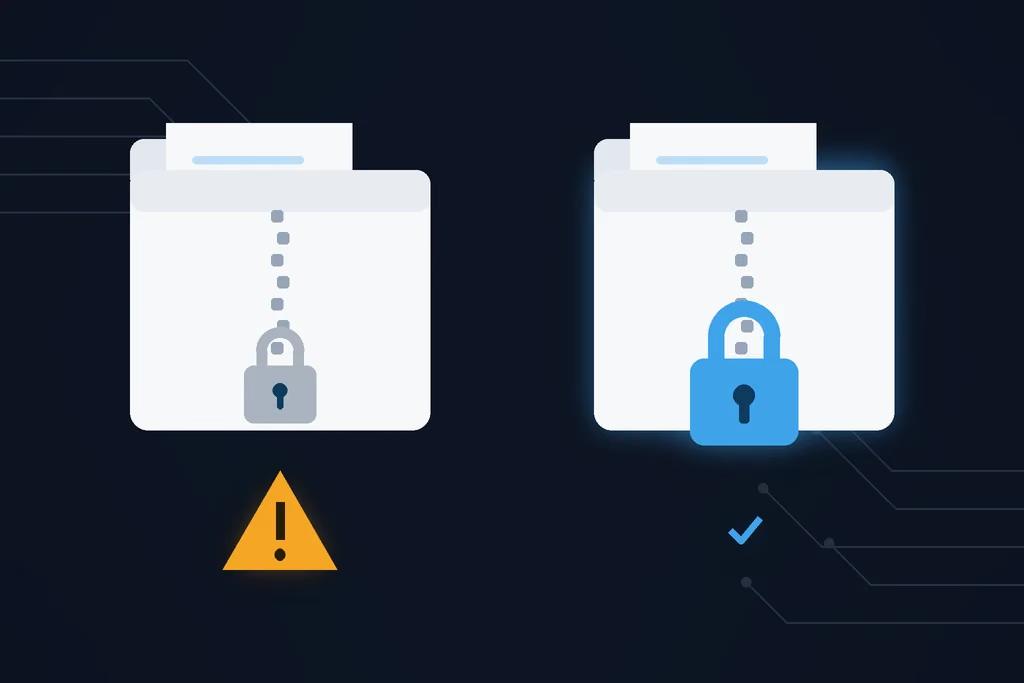
In the zip format, 7-Zip's command-line documentation lists ZipCrypto as the default encryption method, so check the setting every time rather than trusting the default. The zip tool built into macOS is blunt about its own scheme: its manual page recommends "strong encryption such as Pretty Good Privacy instead of the relatively weak standard encryption provided by zipfile utilities."
| ZipCrypto | AES-256 | |
|---|---|---|
| Strength | Weak, older scheme | Stronger |
| Who can open it | Most zip tools | 7-Zip, WinZip and some other zip archivers |
| Where you get it | 7-Zip (zip format), macOS zip -e | 7-Zip (zip or 7z format) |
| Good for | Low-risk files when compatibility matters most | Anything confidential |
How Do I Password Protect a Zip File on a Mac?
To password protect a zip file on a Mac, open Terminal, go to the folder that holds your files, and type zip -er followed by a name for the archive and the folder to compress. Terminal asks for the password twice, without showing it on screen, and creates the zip file.
Option 1: Terminal (Built In)
- Open Terminal (Applications > Utilities).
- Type
cdand a space, drag the folder that contains your files into the window, and press Return. - Type
zip -er client-files.zip FolderName, replacing FolderName with the folder to compress, and press Return. - Enter the password when asked, then enter it again to confirm.
The -e option encrypts the archive with a password typed at a prompt, and -r includes everything inside the folder. Avoid the -P option, which puts the password on the command line; the manual page labels it "THIS IS INSECURE!" Remember that this is the weaker standard zip encryption.
Option 2: An Encrypted Disk Image (Stronger)
For confidential files, Disk Utility can put a folder in an encrypted disk image instead. Apple's guide gives the steps: open Disk Utility, choose File > New Image > Image from Folder, select the folder, then choose an option from the Encryption pop-up menu and set a password. Use it when your recipient also uses a Mac.
Apple's guide carries a warning worth repeating: "If you forget this password, you won't be able to open the disk image and view any of the files." Plan the same way for a zip password: store it somewhere safe.
How Strong Should a Zip File Password Be?
Use a long passphrase of several unrelated words. The Canadian Centre for Cyber Security recommends passwords of at least 12 characters and passphrases of at least 4 words and 15 characters. Someone holding a copy of a zip file can keep guessing offline, so length is your main defence.
The Canadian Centre for Cyber Security recommends passphrases because they are "longer and easier to remember" than random characters. Use a different one for each client or batch of files, so one leaked password does not open everything you have sent.
How Do You Send a Password-Protected Zip File Safely?
Send the password-protected zip file and its password through two different channels. Email or upload the zip, then share the password by phone call or text message. If both travel in the same email, anyone who gets into that inbox, or receives the message by mistake, has the file and the key together.
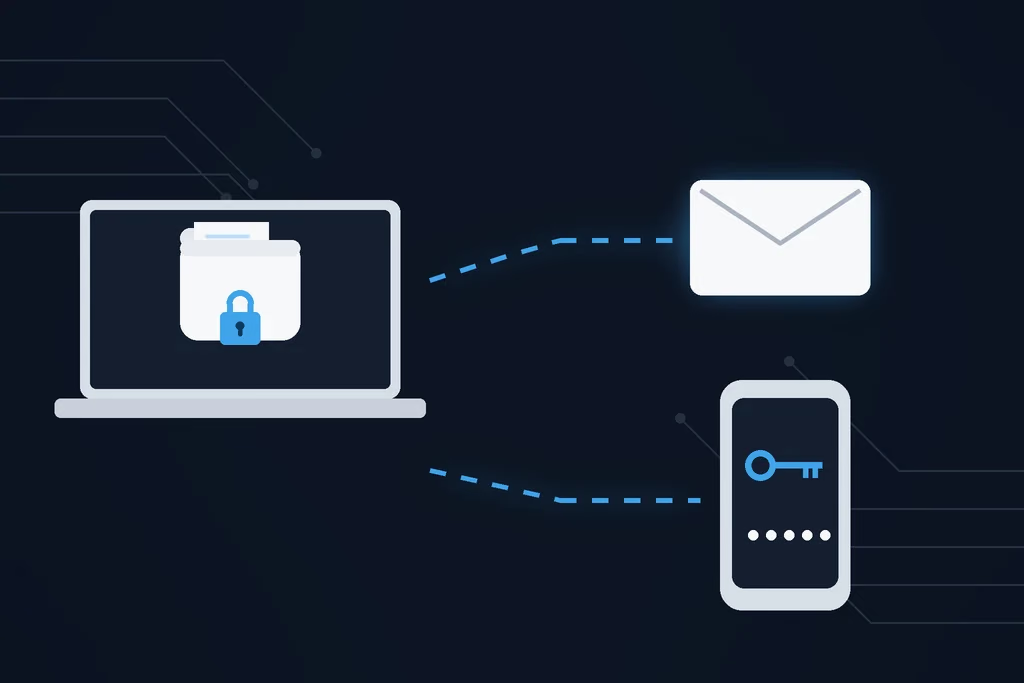
- Tell the recipient what to use. An AES-256 zip may need 7-Zip or WinZip to open. Say so in your message.
- Check the address twice. Auto-complete picking the wrong "Chris" is one of the most ordinary ways files go astray.
- Watch the size. Zipping does not make every file small enough for email. Our guide on how to create a zip file and email it covers the limits, and sending large files in Gmail covers what to do above them.
- Remember the copies. The zip stays in your Sent folder and the recipient's inbox long after the work is done.
Only need to lock one document? Our guides on how to password protect a PDF and how to password protect a Word document cover those. For other ways to lock files on Windows and Mac, see how to encrypt a file.
A Simpler Way to Send Sensitive Files
A password protects the zip, but you still have to deliver the file and the password, make sure the recipient can open AES-256, and live with the copy in both mailboxes. This is where SureSend comes into the picture. SureSend is a Canadian secure file transfer service that sends files through a passphrase-protected link that expires on a date you choose. SureSend encrypts every file while it's sent and while it's stored (TLS in transit, AES-256 at rest).
Here is exactly how it works:
- Create a transfer. Sign in, add one or more recipient email addresses, upload your files, and choose an expiry date of up to 21 days.
- Set a passphrase. SureSend emails each recipient a secure link, but the passphrase is never included in that email. You share it separately, by phone or text.
- The recipient downloads. They open the link, enter the passphrase, and download the files. They do not need a SureSend account.
- Track and control it. Your dashboard shows when the transfer is retrieved. You can cancel it before it is downloaded, and it expires automatically.
Once you send, SureSend reminds you to share the passphrase separately, the same rule that applies to a zip password.
Each transfer allows one successful download. If the download is interrupted, the recipient can try again until one download completes; after that the link cannot be used again, and the transfer's status updates to Retrieved.
Your recipient needs no account and no zip software. You can start on the free Starter plan. Pro is $7 CAD/month plus applicable taxes, with transfers up to 2 GB. SureSend doesn't keep your files forever; they're removed when the transfer expires.
| Password-protected zip by email | SureSend | |
|---|---|---|
| Who sets the password | You, per zip file | You, per transfer (passphrase) |
| How the password travels | Up to you; often wrongly in the same email | Never in the email; you share it separately |
| Recipient needs | A zip tool that supports your encryption method | A browser and the passphrase |
| Expiry | None; copies stay in inboxes | A date you choose, up to 21 days |
| Delivery status | None | Retrieved, Expired or Cancelled on your dashboard |
| Size | Limited by the email service | Up to 2 GB per transfer (Pro) |
Send Files Without the Inbox Copy
SureSend encrypts every file while it's sent and while it's stored: TLS in transit and AES-256 encryption at rest. Send up to 2 GB per transfer, protect it with a passphrase you share separately, set an expiry of up to 21 days, and see when it is retrieved. Your recipient needs no account. New subscribers get 30 days of Pro free, with no credit card required. Start sending securely for free.
A Quick Workflow That Works
For sending a set of confidential files, this routine covers most situations:
- Gather the files in one folder and remove anything the recipient does not need.
- Zip it with 7-Zip using AES-256, or 7z with Encrypt file names if the names are sensitive. On a Mac, use an encrypted disk image for anything confidential.
- Use a long passphrase, different for each client, and store it somewhere safe.
- Send the file, then share the password by phone or text. Never in the same email.
- For large files, or anything you do not want sitting in an inbox, use a passphrase-protected transfer with an expiry date.
Passwords are one layer. Our guide to document confidentiality covers the everyday habits that prevent most leaks, and our guide to sending documents securely compares the safer options.
Frequently Asked Questions
Can you password protect a zip file?
Yes, with an archiver such as 7-Zip on Windows or the zip command in Terminal on a Mac. Windows' built-in Compressed (zipped) folder option cannot add a password.
How do I password protect a zip file in Windows 11?
Install 7-Zip, right-click the files, select Show more options if needed, then 7-Zip and Add to archive. Choose zip, enter the password twice, set the encryption method to AES-256 and select OK.
How do I password protect a zip file on a Mac?
Open Terminal, go to the folder with cd, and run zip -er archive.zip FolderName, then type the password twice. For stronger protection, create an encrypted disk image in Disk Utility instead.
Can you password protect a zip file without software?
On a Mac, yes: the zip command in Terminal is built in. On Windows, no: Microsoft says Windows does not support encrypted archive files and suggests apps such as 7-Zip or WinRAR.
Is a password-protected zip file secure?
It depends on the encryption method. AES-256 is strong if the password is long. ZipCrypto, 7-Zip's default for the zip format, is weak, so choose AES-256 for anything confidential.
Can I recover a forgotten zip file password?
Plan as if you cannot. The password is the key to the encryption, so store it somewhere safe before you send the file.
How does SureSend protect files?
SureSend encrypts files in transit (TLS) and at rest (AES-256), and SureSend manages the encryption keys. The passphrase is never included in the email with the link.
Sources
This article draws on the following sources.
- Microsoft Support. Zip and unzip files. support.microsoft.com
- 7-Zip. 7-Zip home page. 7-zip.org
- 7-Zip documentation. Add to Archive dialog box. 7-zip.opensource.jp
- SS64. zip man page (macOS). ss64.com
- Apple Support. Create a disk image using Disk Utility on Mac. support.apple.com
- Canadian Centre for Cyber Security. Best practices for passphrases and passwords (ITSAP.30.032). cyber.gc.ca
The Bottom Line
Knowing how to password protect a zip file takes a minute: 7-Zip with AES-256 on Windows, Terminal or an encrypted disk image on a Mac. The setting that matters most is the encryption method, not the password box. And the weak point is rarely the encryption. It is the password travelling in the same email as the file.
Lock the zip. Then just SureSend it.