A bookkeeper clicks a convincing invoice link. A shared password is reused on a breached website. A laptop is stolen from a car. None of these needs a sophisticated attacker, and all of them happen to small businesses every week.
Cybersecurity for small business does not require an enterprise budget or an IT department. This guide covers the seven tools and habits that stop the most common attacks, in the order most small businesses should add them.
Quick Summary
- Small businesses are targeted because they hold valuable data and often have fewer defences.
- Most attacks start with stolen credentials, phishing, or unpatched systems, not exotic hacking.
- Start with multi-factor authentication, a password manager, endpoint protection, updates, and backups.
- Protect sensitive files in transit with encrypted, expiring transfers instead of email attachments.
- Canada’s Centre for Cyber Security publishes free baseline controls designed for small and medium organizations.
In This Guide
- Why Are Small Businesses Targeted by Cyberattacks?
- What Are the 7 Essential Cybersecurity Tools for Small Business?
- What Are Canada’s Baseline Cyber Security Controls?
- What Should a Small Business Incident Plan Include?
- How Does SureSend Protect Files in Transit?
- Frequently Asked Questions
- Sources
- The Bottom Line
Why Are Small Businesses Targeted by Cyberattacks?
Attackers go where the effort is low and the payoff is real. Small businesses hold client records, payroll data, and banking access, but often lack dedicated security staff. Year after year, the Verizon Data Breach Investigations Report finds that stolen credentials, phishing, and human error play a part in a large share of breaches. That is good news: those are exactly the risks simple tools can reduce.
What Are the 7 Essential Cybersecurity Tools for Small Business?
The seven essentials are multi-factor authentication, a password manager, endpoint protection, automatic updates, tested backups, secure file transfer, and phishing awareness training.
1. Multi-Factor Authentication (MFA)
MFA stops most account takeovers, even when a password is stolen. Turn it on for email, banking, accounting software, and anything with client data. Authenticator apps or security keys are stronger than text messages.
2. A Password Manager
A team password manager such as Bitwarden or 1Password creates unique passwords for every account and lets you share credentials safely, instead of in spreadsheets or chat.
3. Endpoint Protection
Modern antivirus, often called endpoint protection, detects malware and ransomware on laptops and phones and lets you manage devices centrally. Options for small businesses include Microsoft Defender for Business and Bitdefender GravityZone.
4. Automatic Updates and Patching
Many attacks exploit known flaws that already have fixes. Turn on automatic updates for operating systems, browsers, and business apps, and replace devices that no longer receive updates.
5. Backups You Have Tested
Keep regular backups of important data, with at least one copy offline or in a separate account so ransomware cannot reach it, and test that you can actually restore.
6. Secure File Transfer
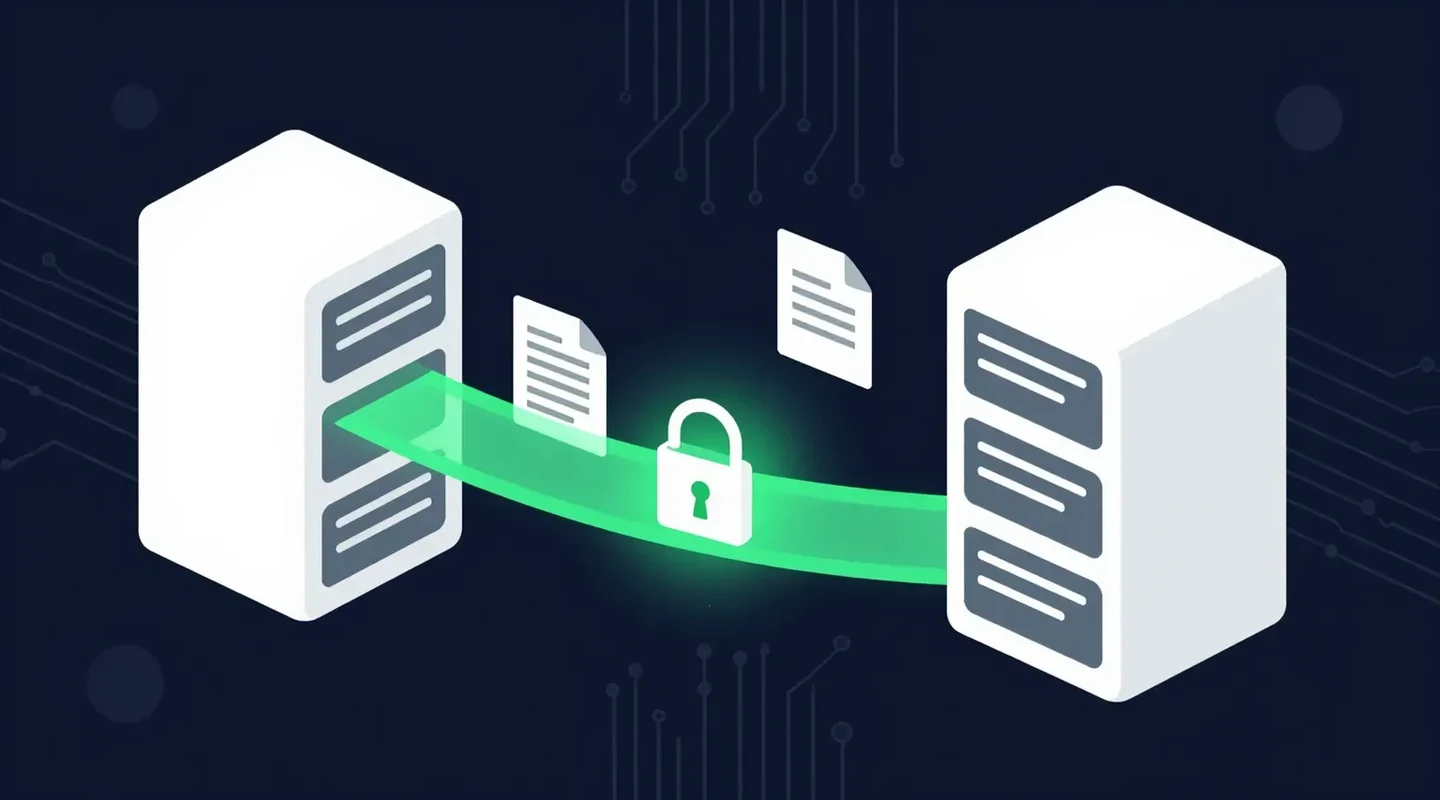
Email attachments stay in inboxes indefinitely and are easy to misdirect. An encrypted transfer with a passphrase and an expiry date protects client files in transit. See how to send documents securely for the options.
7. Phishing Awareness Training
Short, regular training and phishing simulations help staff spot fake invoices, login pages, and urgent payment requests, which remain the most common way attacks begin.
| Tool | What it stops | Priority |
|---|---|---|
| Multi-factor authentication | Account takeover from stolen passwords | Start here |
| Password manager | Reused and weak passwords | Start here |
| Endpoint protection | Malware and ransomware on devices | High |
| Updates and patching | Attacks on known software flaws | High |
| Tested backups | Data loss and ransomware downtime | High |
| Secure file transfer | Exposed or misdirected client files | High for client-facing businesses |
| Phishing training | Fake invoices and credential theft | Ongoing |
What Are Canada’s Baseline Cyber Security Controls?
The Canadian Centre for Cyber Security publishes baseline cyber security controls written specifically for small and medium organizations. They cover incident planning, patching, endpoint protection, backups, strong authentication, employee training, and secure configuration. The government’s Get Cyber Safe site also has free guides and checklists for small businesses.
What Should a Small Business Incident Plan Include?
Know who to call, how to disconnect an infected device and reset accounts, and your privacy reporting obligations, and keep a printed copy of key contacts in case email is unavailable.
- Know who to call: your IT provider, your bank, your insurer, and legal counsel.
- Know how to disconnect an infected device and reset compromised accounts.
- Know your privacy obligations. Under PIPEDA, breaches that pose a real risk of significant harm must be reported.
- Keep a printed copy of key contacts, because email may be unavailable.
Newer threats are raising the stakes. Our guide to AI malware and AI-powered attacks explains how attackers use AI and how to respond.
How Does SureSend Protect Files in Transit?
Client files are what attackers want, and email is where they are most exposed. This is where SureSend comes into the picture. SureSend is a Canadian secure file transfer service that sends files through a passphrase-protected link that expires on a date you choose. SureSend uses server-side encryption: files are protected with TLS in transit and AES-256 encryption at rest, with encryption keys managed by SureSend. Here is exactly how it works:
- Create a transfer. Sign in, add one or more recipient email addresses, upload your files, and choose an expiry date of up to 21 days.
- Set a passphrase. SureSend emails each recipient a secure link, but the passphrase is never included in that email. You share it separately, by phone or text.
- The recipient downloads. They open the link, enter the passphrase, and download the files. They do not need a SureSend account.
- Track and control it. Your dashboard shows when the transfer is retrieved. You can cancel it before it is downloaded, and it expires automatically.
After you send, SureSend reminds you to share the passphrase separately, and your dashboard shows when each transfer is retrieved.
Close the File-Sharing Gap
SureSend uses server-side encryption: TLS in transit and AES-256 encryption at rest, with keys managed by SureSend. Send up to 2 GB per transfer, protect it with a passphrase you share separately, set an expiry of up to 21 days, and see when it is retrieved. Your recipient needs no account. New subscribers get 30 days of Pro free, with no credit card required. Start sending securely for free.
Frequently Asked Questions
What is the most important cybersecurity step for a small business?
Turn on multi-factor authentication for email and other critical accounts. It blocks most account takeovers, costs little or nothing, and takes minutes to set up.
How much does cybersecurity cost for a small business?
It varies with the number of people and devices. Many essentials, such as MFA, automatic updates, and built-in endpoint protection, are included with software you already pay for; password managers and backup services typically cost a few dollars per user per month.
Is antivirus enough?
No. Antivirus helps, but most attacks start with stolen credentials or phishing. Combine it with MFA, a password manager, updates, backups, and staff training.
Do small businesses need cyber insurance?
It can help cover the cost of an incident, but insurers increasingly require basics such as MFA and backups before they offer coverage, so put those in place first.
Sources
This article draws on the following sources.
- Canadian Centre for Cyber Security. Baseline cyber security controls for small and medium organizations. cyber.gc.ca
- Government of Canada. Get Cyber Safe. getcybersafe.gc.ca
- Verizon. Data Breach Investigations Report. verizon.com
The Bottom Line
Cybersecurity for small business is not about buying everything. It is about doing the basics well: strong sign-ins, updated devices, tested backups, trained people, and a safe way to share sensitive files.
Lock down the basics. Then send files the right way.